
Overview
DentalAS Tool is an after-sales support utility designed to resolve intraoral scan software lag issues encountered during computer use. It is primarily used for performance optimization and troubleshooting, helping to improve software smoothness and stability. This tool is included in installation packages of version 366X and above
Tool Startup
Locate DentalASTool.exe in the installation directory (for version 366x and above), and double-click to open. The tool runs with administrator privileges by default—click 'Yes' if prompted.
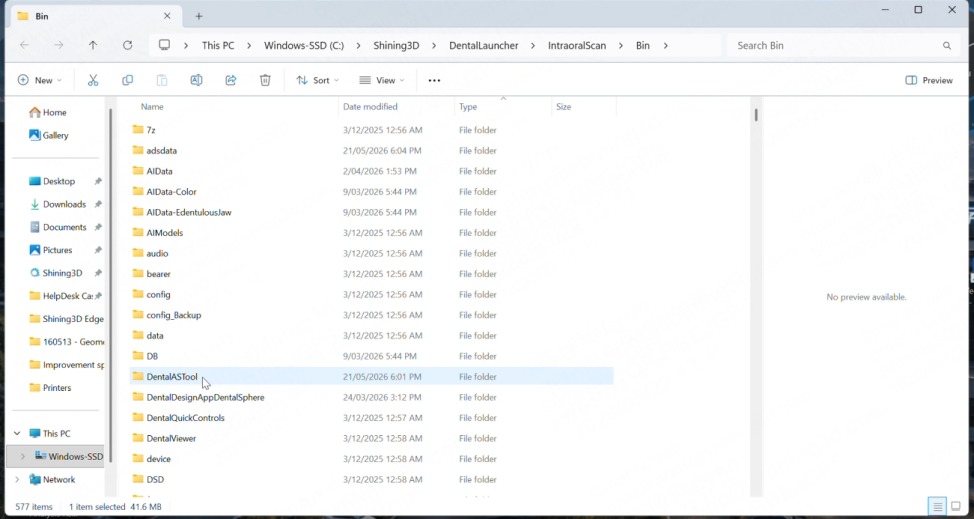
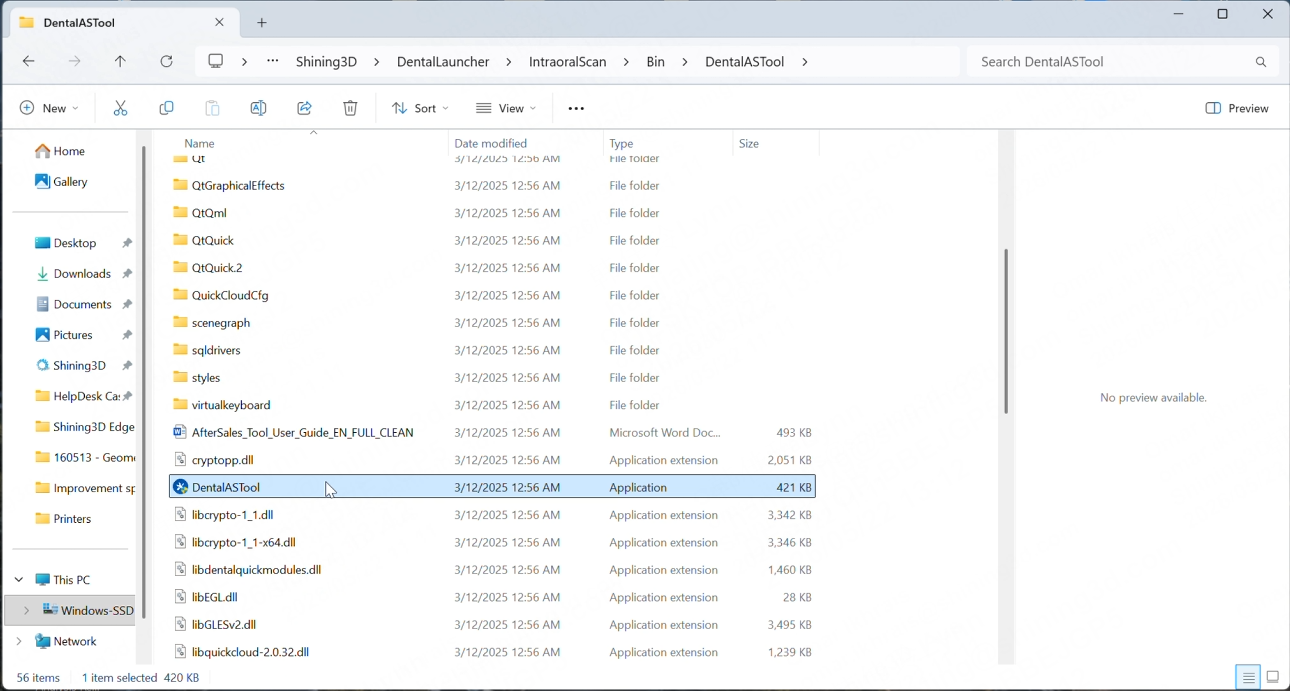
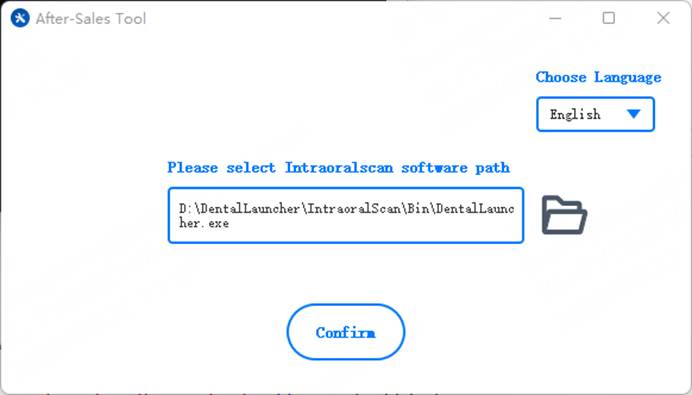
After launching, the welcome page appears. Please check whether the software path and language are correct.
- If multiple versions are installed, select the version of DentalLauncher.exe currently in use.
- If IntraoralScan software or the portable version is not installed, the path will be empty.
- For the portable version, click the button on the right to select its DentalLauncher.exe.
- If not installed, click Confirm. Some features will be hidden if no path is selected.
Environment Check
After clicking Confirm, you will enter the main interface with system and hardware info. Click Refresh to update.
Hardware below requirements is marked in orange (warning) or red (not recommended), based on the following rules:
- If RAM is below 15GB: marked in red
- If virtual memory is below 20GB: marked in orange
- Non-Intel CPU: marked in orange
- Outdated discrete GPU driver: orange; unsupported GPU model or missing integrated driver: red
- Power mode not set to High Performance: marked in orange
- GPU hardware acceleration not enabled: red; not detected: orange
- Unsupported antivirus software: marked in red
- Order directory not on SSD: marked in orange
- VC++ libraries not installed: marked in red
- Dual-GPU preference not set to High Performance for relevant processes: marked in orange
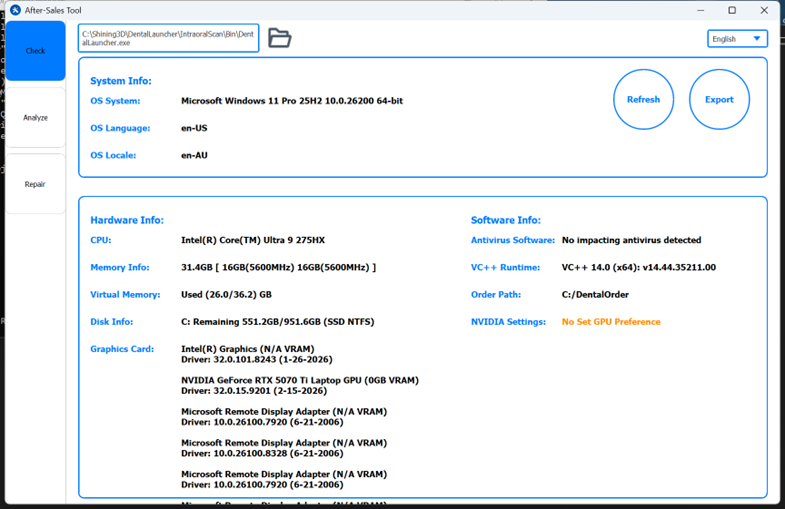
Click Export to generate the report file (checkRes.csv). Repeated exports will overwrite the content.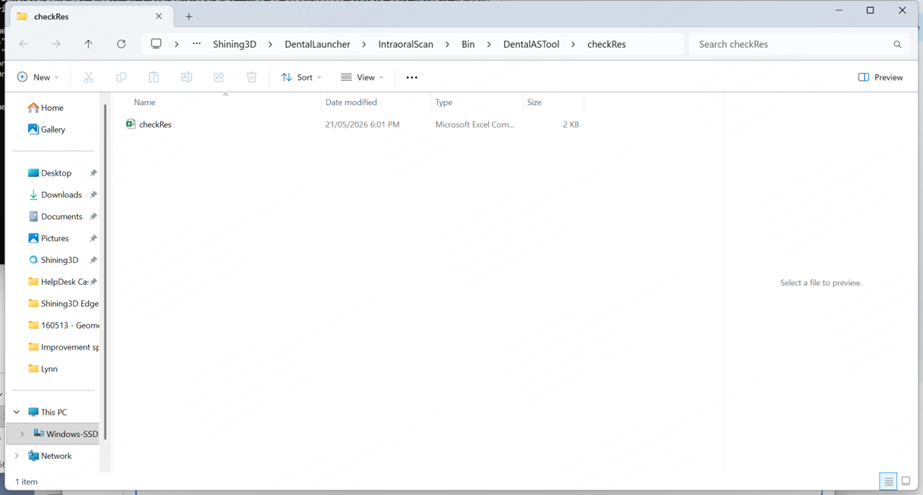
Repair
Including auto-repair(green) and manual repair(red)
For automatic repair, click 'Repair' or 'Repair All'.
1) Repair GPU preference repair may not always succeed. If it fails, manually adjust settings via Nvidia Control Panel.
2)If disk space is low, virtual memory setup may fail. Adjust settings manually in Windows if needed.
Manual repairs require clicking the individual repair button to take effect.
- Set the firewall switch as needed.
- Click 'Update GPU Driver' to auto-download and install the suitable version. Some models may require manual download.
- Click 'Download GPU Driver' to open Nvidia’s website and manually download the latest version.
- Click 'Fix Order Save Path' to open a folder selector and assign a new save location.