
Overview
Some scanner/software connection issues may be caused by IT security settings rather than the scanner, software, or computer hardware.
Firewalls, antivirus software, endpoint protection, DNS filters, proxy servers, VPNs, and application-control tools can prevent required software files, services, drivers, or cloud connections from working correctly.
This article explains:
- Common symptoms of IT-related blocking
- Quick tests to identify whether the issue is local or network-related
- What customer IT may need to allow
- How to collect an .exe list for IT review
- What firewall, antivirus, and Windows Security changes may be needed
Common Symptoms
IT security restrictions may cause the following issues:
Symptom | Possible cause |
Software will not open | Antivirus, SmartScreen, EDR, or application control is blocking the software |
Software opens but scanner does not connect | Firewall, service blocking, driver issue, or network adapter restriction |
Scanner is detected by Windows but not by the software | Required service, driver, or local communication is blocked |
Login fails | Cloud access, DNS, proxy, firewall, date/time, or SSL issue |
Cloud indicator is red, disconnected, or shows a slash mark | Software cannot reach required cloud services |
Uploading, downloading, or sending cases fails | Cloud/domain access is blocked |
Modules do not load | Required cloud resource or local component is blocked |
Software update fails | Update service, installer, or download connection is blocked |
Installation fails or is interrupted | Antivirus, EDR, SmartScreen, driver policy, or missing admin rights |
Background services do not start | Service is blocked, disabled, quarantined, or restricted |
Scanner disconnects over wireless | Wireless adapter, firewall, driver, base connection, or service issue |
Software works on mobile hotspot but not office network | Office firewall, DNS filtering, proxy, or network security policy issue |
Why This Happens
Many offices use multiple layers of IT security. These tools are important, but they may block trusted software if the required applications, services, drivers, folders, or cloud domains are not approved.
Common security layers include:
Security layer | Possible impact |
Windows Defender Firewall | May block scanner communication, cloud sync, updates, or local services |
Microsoft Defender Antivirus | May block or quarantine installers, services, drivers, or application files |
Third-party antivirus / EDR | May block background services, scripts, drivers, or network traffic |
SmartScreen / app protection | May prevent installer tools or update tools from opening |
Controlled Folder Access | May block software from saving scans, logs, exports, or case files |
DNS filtering | May prevent cloud domains from resolving correctly |
Proxy / web filtering | May block login, cloud sync, downloads, or API communication |
VPN software | May reroute or block required local or cloud traffic |
Application control | May prevent unknown .exe files from running |
USB / driver policy | May prevent scanner drivers or virtual network adapters from working |
Quick Checks Before Escalating to IT
1. Check the Cloud Indicator
If the software has a cloud indicator, check its status.
A red cloud indicator, disconnected icon, or slash mark may indicate that the software cannot connect to required cloud services.
Affected functions may include:
- Login
- Case sending
- Case downloading
- Cloud sync
- Module loading
- Software resources
- Updates
Cloud Indicator on Software (Top Left)
| Successful Cloud Connection | Blocked connection |
 |  |
2. Test with a Mobile Hotspot
Connect the PC to a mobile hotspot and retest the software.
Test result | Meaning |
Works on hotspot but not office network | Office network, DNS, proxy, firewall, or filtering issue is likely |
Fails on both hotspot and office network | Local PC, software, service, account, or security software issue is more likely |
Works on another PC on the same network | The issue may be isolated to one PC |
Fails on all PCs on the same network | Network-wide security restriction is likely |
A successful hotspot test is one of the fastest ways to show that customer IT needs to review network filtering, DNS, proxy, firewall, or domain allowlisting.
3. Check VPN Software
VPN software may block or reroute local scanner communication and cloud traffic.
Ask the customer to check whether a VPN is active. If IT approves, temporarily disconnect the VPN and retest.
VPN-related issues may affect:
- Scanner connection
- Cloud login
- Upload/download
- Local network communication
- License or authentication services
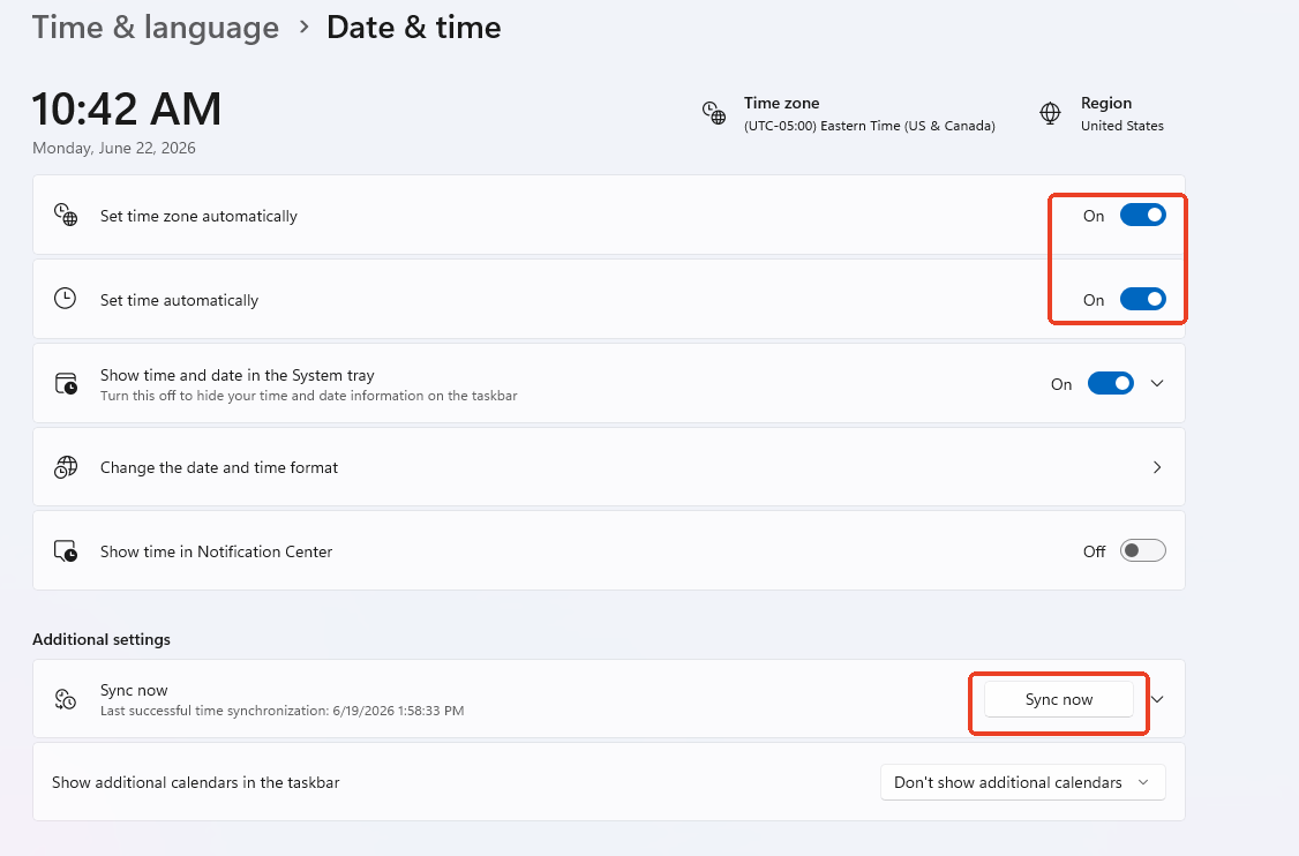
4. Check Date and Time
Incorrect Windows date or time can cause:
- Login failures
- SSL certificate errors
- Cloud communication failures
- License or authentication issues
Recommended setting:
- Open Windows Settings.
- Go to Time & language.
- Select Date & time.
- Enable:
- Set time automatically
- Set time zone automatically, if appropriate
5. DNS Test
DNS translates cloud addresses into IP addresses. If DNS is blocked or filtered, the PC may still have general internet access, but the software may fail to connect to required cloud services.
Example:
shining3d.com → 123.45.67.89
Scanner/software cloud functions may depend on DNS for:
- Login
- Case upload
- Case download
- Cloud sync
- Software resources
- Updates
- API communication
Testing with public DNS such as 8.8.8.8 or 1.1.1.1 can help determine whether the customer’s DNS infrastructure is causing the issue.
Important: Changing DNS is a diagnostic step, not the preferred permanent fix. If changing DNS resolves the issue, customer IT should review DNS forwarding, DNS filtering, web filtering, proxy restrictions, firewall rules, and domain allowlisting.
Windows Defender and Security Software
Windows Defender Firewall
Windows Defender Firewall controls network traffic in and out of the PC.
It may block:
- Scanner communication
- Cloud sync
- Software updates
- Local network discovery
- Background services
- Communication between scanner software and local services
Customer IT may need to create firewall allow rules for required software components.
Recommended firewall allowlist items:
Item | Recommended action |
Main software executable | Allow required inbound/outbound traffic |
Launcher executable | Allow outbound traffic; inbound if needed |
Background service executable | Allow inbound/outbound traffic if used for scanner/software communication |
Device communication executable | Allow local scanner or local network communication |
Update executable | Allow outbound traffic |
Cloud communication component | Allow outbound HTTPS traffic |
Recommended firewall profiles:
Firewall profile | Recommendation |
Domain | Allow if the PC is connected to a managed company domain |
Private | Usually allow for clinic, office, lab, or trusted scanner networks |
Public | Only allow if specifically required by IT or the workflow |
For most scanner/software workflows, Domain and Private are the preferred firewall profiles. Public access should be limited unless there is a specific need.
Microsoft Defender Antivirus
Microsoft Defender Antivirus scans files, applications, installers, scripts, services, and system activity.
It may block or delay:
- Installer files
- Application .exe files
- Background services
- Driver installation
- Update tools
- Network communication
- Scan exports, logs, or case files
If Defender is confirmed to be interfering, customer IT may need to add targeted exclusions.
Possible Defender exclusions:
Exclusion type | What to add | Purpose |
File path exclusion | Full path to required .exe files | Prevents Defender from blocking or quarantining trusted files |
Process exclusion | Required .exe process path | Prevents Defender from scanning trusted process activity |
Folder exclusion | Trusted software installation folder | Helps when multiple related files or updates are affected |
Controlled Folder Access allowed app | Required application .exe files | Allows trusted software to write to protected folders |
Important: Antivirus should not be permanently disabled. The preferred solution is a targeted allowlist or exclusion for trusted files, services, folders, and processes.
Controlled Folder Access
Controlled Folder Access is a Windows Security feature that blocks unauthorized applications from writing to protected folders.
If enabled, it may prevent the software from saving:
- Scan data
- Case files
- Export files
- Logs
- Configuration files
- Temporary workflow files
If Controlled Folder Access is blocking the software, customer IT may need to allow the required software applications.
Third-Party Antivirus or EDR
If a third-party antivirus or EDR platform is installed, Microsoft Defender may not be the active antivirus provider. In that case, allow rules and exclusions must be added through the customer’s security platform.
Customer IT should check for:
- Quarantined files
- Blocked processes
- Blocked scripts
- Blocked services
- Blocked driver installation
- Blocked network connections
- Suspicious behavior detections
- Application-control restrictions
Software folder directories to exclude from Antivirus / Sercurity scanning for softwares to be allowed.
Either allow full folder or specific EXE files listed.
Folder directories will vary depending on instalation options, verify before changing.
Default paths are used below.
IOS Scanners:
Main SW directory: C:\Shining3D\DentalLauncher
C:\Shining3D\DentalLauncher\IntraoralScan\Bin
DentalLauncher.exe
IntraoralScan.exe
DentalAlgoService.exe
DentalNetwork.exe
SnSyncService.exe
C:\Shining3D\DentalLauncher\IntraoralScan\Bin\hub
DentalHub
quickBroker
Desktop Scaners:
Main SW directory: C:\Shining3D\DentalScan
C:\Shining3D\DentalScan\DentalScan\Bin
DentalScan.exe
DSLauncher.exe
DSAlgoService.exe
DSNetwork.exe
DSSnSyncService.exe
C:\Shining3D\DentalScan\DentalScan\Bin\hub
DSHub.exe
Facial Scanners:
Main SW directory: C:\Shining3D\FSLauncher
C:\Shining3D\FSLauncher\Facecan\Bin
FScan.exe
FSLauncher.exe
FSAlgoService.exe
FSNetwork.exe
FSSyncService.exe
C:\Shining3D\FSLauncher\Facecan\Bin\hub
FSHub.exe
quickBroker.exe
Network and Cloud Allowlisting
The software requires cloud access, customer IT may need to allow the required vendor domains through:
- DNS filtering
- Web filtering
- Proxy rules
- Firewall rules
- SSL inspection policies
- Endpoint security policies
IT should confirm that HTTPS access is allowed to the required software/cloud services.
Affected functions may include:
- Login
- Case upload
- Case download
- Cloud sync
- Software updates
- Module loading
- API communication
- License or authentication services
Recommended IT request:
Please allow the required software domains through DNS filtering, web filtering, proxy inspection, firewall rules, and endpoint security policies.
The affected functions include:
- Login
- Case upload/download
- Cloud sync
- Software updates
- Module loading
- API communication
Refer to the below article for a list of Domains / Ports needed for the software to run
Can Not Access / Sync Cloud - IT Allowlist : Dental Support
Wireless Scanner and Network Adapter Checks
For wireless scanner workflows, Windows may show whether the scanner base or related network adapter is connected.
Important distinction:
- USBDeview may show whether the wireless base is connected to the PC.
- USBDeview may not confirm whether the scanner itself is communicating with the base.
- Task Manager or Network Connections may help confirm whether the related network adapter is active.
- A red X or greyed-out adapter may indicate that the adapter is disabled or not working correctly.
- In USBDeview, a disabled driver may show a red dot even though the device appears connected.
Customer IT or support should check:
- The wireless base is physically connected.
- The adapter appears in Windows.
- The adapter is enabled.
- The driver is installed correctly.
- Security software is not blocking the service or adapter.
- The scanner can communicate with the base.
Using the EXE Finder BAT Files
Purpose
The EXE finder BAT files are used to collect all .exe files inside a software version folder.
These BAT files do not add firewall rules, antivirus exclusions, or make system changes. They only search for .exe files and create a text file that can be sent to customer IT.
Google Drive Folder for BAT Files
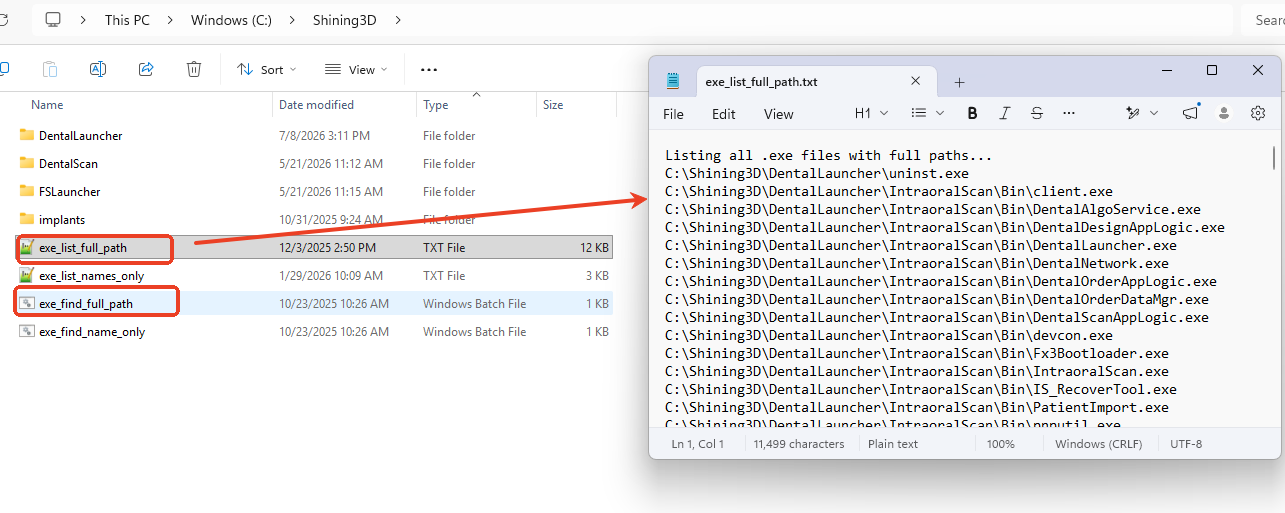
There are two versions:
BAT file | Output | Best use |
exe_find_full_path.bat | Full path of every .exe file | Useful when IT needs exact file paths |
exe_find_name_only.bat | File name only for every .exe file | Useful when IT needs a simple executable name list |
Where to Place the BAT Files
Place the BAT file in the parent directory of the software version folder so it can scan all subfolders.
Example folder structure:
Full Path EXE List
Use this option when IT needs the full location of every executable.
Output file:
exe_list_full_path.txt
Example output:
Listing all .exe files with full paths...
C:\Shining3D\DentalLauncher\uninst.exe
C:\Shining3D\DentalLauncher\IntraoralScan\Bin\client.exe
C:\Shining3D\DentalLauncher\IntraoralScan\Bin\DentalAlgoService.exe
C:\Shining3D\DentalLauncher\IntraoralScan\Bin\DentalDesignAppLogic.exe
C:\Shining3D\DentalLauncher\IntraoralScan\Bin\DentalLauncher.exe
Use this output when IT asks for:
- Firewall executable paths
- Antivirus exclusions
- EDR allow rules
- Application-control review
- Exact software component locations
Important: The EXE list is an inventory for IT review. Not every .exe file necessarily requires firewall access. For example, uninstallers such as uninst.exe usually do not need network/firewall allowlisting unless IT specifically requires all software executables to be reviewed.
Name-Only EXE List
Use this option when IT only needs executable names.
Output file:
exe_list_names_only.txt
Example output:
uninst.exe
client.exe
DentalAlgoService.exe
DentalDesignAppLogic.exe
DentalLauncher.exe
Use this output when IT asks for:
- General application allowlist
- Executable names
- Security review
- Software component list
Recommended Shining3D Items for IT Review
The exact files may vary by software version and installation path. Customer IT should review the generated EXE list and confirm which files are required.
Possible IT actions:
Area | Recommended review |
Windows Firewall | Allow required executables for Domain and Private profiles |
Microsoft Defender Antivirus | Add file/process exclusions if Defender is blocking or quarantining files |
Third-party antivirus / EDR | Add trusted allow rules if files, services, or processes are blocked |
Controlled Folder Access | Allow required apps if the software cannot save scans, logs, exports, or case files |
Application control | Allow required files by path, publisher, certificate, hash, or approved folder |
Services | Confirm required services are installed, allowed, and running |
Cloud/domain filtering | Allow required vendor domains and HTTPS traffic |
Recommended Workflow for Support and Customer IT
Step 1: Confirm the Issue
Document the issue clearly:
Software name:
Software version:
Scanner/device model:
Windows version:
Issue observed:
Does the software open:
Does the scanner connect:
Does cloud login/sync work:
Does upload/download work:
Does the issue happen on one PC or all PCs:
Does the issue happen on office Wi-Fi, Ethernet, or both:
Does the issue work on mobile hotspot:
Step 2: Collect the EXE List
- Locate the correct software version folder.
- Place the EXE finder BAT file in the parent folder.
- Run either:
- exe_find_full_path.bat
- exe_find_name_only.bat
- Open the generated .txt file.
- Send the output to customer IT.
Step 3: Ask IT to Review Firewall Rules
Customer IT should review firewall access for the required application files.
Recommended request:
Please review the attached EXE list and allow the required software components through Windows Defender Firewall or the company firewall.
Recommended profiles:
- Domain, if the PC is domain-managed
- Private, for trusted office/clinic/lab networks
Public should only be allowed if specifically required by IT or the workflow.
Step 4: Ask IT to Review Antivirus / EDR Logs
Customer IT should check whether antivirus or EDR has blocked, quarantined, or restricted any required files.
Recommended request:
Please check antivirus/EDR logs for blocked or quarantined Shining3D software files, services, scripts, drivers, or network activity.
If trusted software components are being blocked, please add targeted allow rules or exclusions for the required files, processes, services, and folders.
Step 5: Ask IT to Review Services
Customer IT or support should confirm that required services are:
- Installed
- Running
- Not disabled
- Not quarantined
- Not blocked by EDR
- Not blocked by application control
- Allowed to communicate through the firewall if network communication is required
Open Services:
Windows + R → services.msc
Check for services related to the software, scanner, launcher, algorithm processing, or device communication.
Step 6: Ask IT to Review Cloud/Domain Access
If login, upload, download, cloud sync, software resources, or updates are affected, customer IT should review cloud/domain access.
Recommended request:
Please confirm that required vendor domains are allowed through:
- DNS filtering
- Web filtering
- Proxy rules
- Firewall rules
- SSL inspection policies
- Endpoint security policies
Please also confirm that outbound HTTPS traffic is allowed for the required software components.
Step 7: Restart and Retest
After IT makes changes:
- Restart the software.
- Restart related services, if applicable.
- Restart the PC if files, services, drivers, or Defender exclusions were changed.
- Retest scanner connection.
- Retest login.
- Retest upload/download.
- Retest cloud indicator.
- Retest the original failed workflow.
Troubleshooting Decision Guide
Result | Likely cause | Next step |
Works on hotspot but not office network | Office firewall, DNS, proxy, or web filtering | Escalate to customer IT |
Fails on all networks | Local PC, software, antivirus, service, or account issue | Check Windows Security, services, install status |
Works on another PC on same network | Local PC security or configuration issue | Compare firewall, antivirus, services, and drivers |
Fails on all PCs on same network | Network-wide restriction | Review firewall, DNS, proxy, and domain allowlist |
Cloud indicator is red/disconnected | Cloud connectivity blocked or service unavailable | Test DNS, hotspot, firewall, and domains |
Scanner base appears connected but scanner does not connect | Wireless adapter, driver, service, or base/scanner communication issue | Check Task Manager, Network Connections, USBDeview, and services |
Installer fails | Antivirus, SmartScreen, app control, driver policy, or missing admin rights | Check security logs and install with admin rights |
Software cannot save files | Controlled Folder Access, folder permissions, or antivirus restriction | Allow trusted apps or review folder permissions |
Software opens but processing fails | Background service or algorithm component may be blocked | Check services, Defender/EDR logs, and required executables |
Information to Send to Customer IT
When escalating to customer IT, provide:
Software name:
Software version:
Scanner/device model:
Windows version:
Installation path:
Generated EXE list:
Affected workflow:
Error message or screenshot:
Does the issue happen on all PCs or only one PC:
Does the issue happen on Ethernet, office Wi-Fi, or both:
Does it work on mobile hotspot:
Antivirus/EDR software installed:
VPN software installed:
Firewall profile in use:
Required cloud/domain allowlist:
Recommended message:
The scanner/software may be blocked by local firewall, antivirus/EDR, application control, DNS filtering, proxy filtering, or network security policy.
Please review the attached executable list and allow the required software components, background services, trusted folders, and cloud/domain connections.
The affected functions may include:
- Software login
- Scanner communication
- Cloud upload/download
- Module loading
- Software updates
- Local service communication
- File saving/exporting
A hotspot test and DNS test can help determine whether the issue is caused by the office network or local PC security.
Recommended Pictures to Include
To make the article easier for customers and IT teams to follow, include the following images where available:
- Software cloud indicator
Show normal vs red/disconnected status. - BAT file placement
Show the EXE finder BAT file placed in the parent software folder. - Generated EXE list
Show exe_list_full_path.txt with executable paths. - Windows Firewall allowed apps
Show Domain / Private / Public options. - Windows Security exclusions
Show file, process, or folder exclusion location. - Controlled Folder Access allowed apps
Show where trusted applications can be allowed. - Windows Date & Time settings
Show automatic time enabled. - Network adapter check
Show scanner/base adapter enabled in Windows Network Connections or Task Manager. - DNS/cloud diagram
Show simple flow: Software → DNS → Cloud Server.
Summary
IT security restrictions can prevent scanner/software systems from opening, connecting to devices, logging in, syncing with cloud services, updating, saving files, or running required background services.
The preferred resolution is not to disable security permanently. Customer IT should add targeted allow rules for trusted executable files, background services, folders, drivers, and cloud domains.
The EXE finder BAT files help collect the executable list from a software version folder so IT can review and allow the required components more easily.