
Overview
When logging in, registering, binding a device, or verifying an account, users may be asked to request a verification code by email or phone number.
In some cases, the user may not receive the code after selecting Get Code, Send Code, or a similar option.
This issue can be caused by several factors, including email filtering, company security policies, network restrictions, incorrect account information, phone carrier filtering, or expired verification codes.
Software Login and Registration
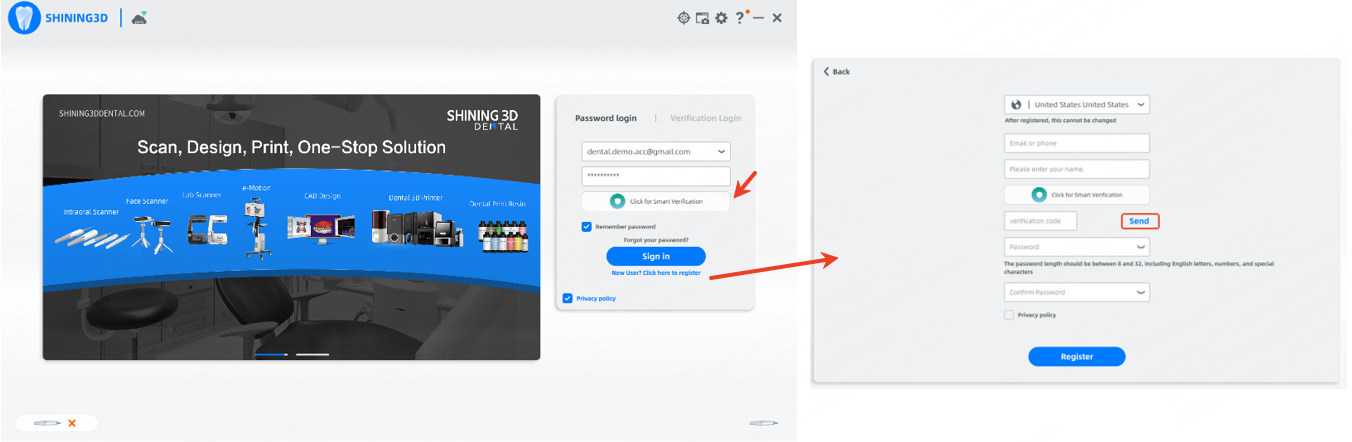
Cloud Login and Registration
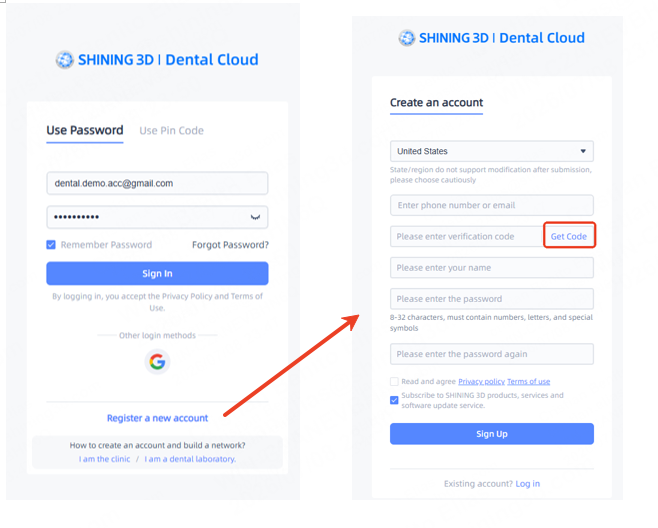
Applies To
This article applies to verification codes sent by:
- SMS/text message
- Phone number verification
- Account login or registration
- Cloud platform access
- Device binding or account verification
Common Symptoms
Users may report one or more of the following:
- The verification code never arrives.
- The email is not in the Inbox, Spam, or Junk folder.
- The code arrives late and no longer works.
- The user receives an “invalid code” or “expired code” message.
- SMS verification does not arrive on the phone.
- The code works on one network but not another.
- The issue only happens with a company email address or office network.
Why a Verification Code May Not Be Received
A verification code issue can happen at different stages:
- The request to generate the code may not reach the server.
- The code may be generated but blocked during delivery.
- The code may be delivered but filtered, delayed, or hidden.
- The code may expire before the user enters it.
Email Verification Issues
1. Email Filtering or Quarantine
Company email systems may block automated verification emails before they reach the user’s mailbox. In these cases, the email may not appear in the Inbox, Spam, or Junk folder.
This is common with business, school, hospital, clinic, or managed email domains that use advanced security filtering.
Example
Name of Clinic: Big Smiles
Email Domain: dr_name@big_smiles.com
Possible causes include:
- Email security gateway filtering
- Domain-level spam protection
- Quarantine policies
- Anti-phishing rules
- Mail flow rules
- Blocked sender/domain
- External sender restrictions
- Automated email filtering
If the user is using a company email address, they may need to contact their internal IT or email administrator.
Recommended allowlist entries:
service@mq.shining3d.com
*@mq.shining3d.com
*@shining3d.com
The email administrator should allow emails from the Shining 3D cloud sender/domain and check whether previous verification emails were quarantined or blocked.
2. Spam, Junk, or Mail Rules
The verification email may be delivered but moved to another folder automatically.
Ask the user to check:
- Inbox
- Spam
- Junk
- Clutter
- Quarantine
- Deleted items
- Other folders
- Email rules or filters
- Focused/Other inbox tabs
The user can also search their mailbox for:
- Shining3D
- verification
- code
- service@mq.shining3d.com
3. Incorrect Email Address or Account
The user may be checking the wrong email address.
Confirm that:
- The email address was typed correctly.
- The user is checking the same email used for the account.
- The user is using the correct regional site or platform.
- For device binding, the email may need to match the email originally used to register or bind the device.
4. Expired or Replaced Code
Verification codes are time-sensitive. If the user waits too long, the code may expire.
If the user requests multiple codes, the newest code may replace the previous one. The user should always enter the most recent code received.
Recommended steps:
- Request a new code.
- Wait for the newest email or SMS.
- Enter the newest code only.
- Avoid requesting multiple codes repeatedly.
Network-Related Issues
In some cases, the verification code is not received because the request to generate the code is blocked before it reaches the cloud server.
This can happen on restricted networks such as:
- Office Wi-Fi
- Clinic or hospital networks
- School networks
- Public Wi-Fi
- Networks using VPNs
- Networks using proxy servers
- Networks with DNS filtering
- Networks with firewall restrictions
- Networks with endpoint security filtering
If the request is blocked by the network, the server may never receive the request. As a result, the verification code may never be generated or sent.
Recommended Network Test
Ask the user to try requesting the code again using:
- A different Wi-Fi network
- A mobile hotspot
- A direct cellular connection
- A different computer or mobile device
If the verification code works on another network, the original network may be blocking the request. The user should contact their IT or network administrator to review firewall, DNS, VPN, proxy, or security filtering rules.
Provide IT team with the following article for review to allow connections to Shining3D Servers
Can Not Access / Sync Cloud - IT Allowlist : Dental Support
Phone Number or SMS Verification Issues
Phone verification can fail for different reasons than email verification. Even if the request reaches the server successfully, SMS delivery may still be blocked or delayed by the phone carrier or device.
Common SMS Verification Causes
Possible causes include:
- Incorrect phone number
- Wrong country code
- Wrong region selected
- Missing area code
- Carrier blocking automated messages
- Carrier blocking short-code messages
- Carrier blocking international SMS
- Poor cellular signal
- Roaming restrictions
- SMS inbox full
- Device spam filtering
- Blocked sender list
- Use of VoIP, virtual, forwarding, or disposable phone numbers
- Too many code requests in a short period
- Expired code
SMS Troubleshooting Steps
Ask the user to confirm the following:
- The phone number is entered correctly.
- The correct country or region code is selected.
- The phone has cellular signal.
- The phone can receive regular SMS messages.
- The phone is not blocking unknown or automated senders.
- SMS spam filtering is not hiding the message.
- The phone number is not VoIP, virtual, temporary, or forwarding-based.
- The mobile carrier is not blocking automated verification messages.
- The user is entering the newest code received.
If possible, the user can test with another mobile number.
Recommended Troubleshooting Checklist
Use the following steps when a user cannot receive a verification code:
- Confirm the email address or phone number is correct.
- Confirm the user is on the correct platform, region, or account page.
- Complete any captcha or human verification requirement.
- Wait at least 60 seconds before requesting another code.
- Request only one new code and use the newest code received.
- Check Spam, Junk, Quarantine, Deleted Items, and email rules.
- Search the mailbox for Shining3D or the sender address.
- If using a company email, ask IT to allowlist:
service@mq.shining3d.com
*@mq.shining3d.com
*@shining3d.com
- Try again using a different Wi-Fi network or mobile hotspot.
- For SMS, confirm the phone number format and country code.
- For SMS, check with the mobile carrier about automated message blocking.
- If the issue continues, collect details and escalate to support.
Information to Collect Before Escalation
If the user still cannot receive the code, collect the following information:
- User email address or phone number used for verification
- Platform or website where the code was requested
- Date and time of the request
- User’s country/region
- Whether email or SMS verification was used
- Screenshot of any error message
- Whether the user tried another network or mobile hotspot
- Whether the user checked Spam, Junk, and Quarantine
- Whether the email administrator allowlisted the sender/domain
- Whether another email address or phone number was tested
- Device and browser used
- Network type used, such as office Wi-Fi, home Wi-Fi, VPN, or hotspot
Summary
Verification code issues can be caused by email filtering, company email security, network restrictions, incorrect account information, phone carrier filtering, SMS restrictions, or expired codes.
If the request is blocked by the local network, the verification code may never be generated. If the request reaches the server but the user still does not receive the code, the issue is more likely related to email filtering, email quarantine, phone carrier filtering, phone number format, or SMS delivery restrictions.
For company email addresses, the user should contact their IT or email administrator to allowlist the Shining 3D cloud sender/domain. For SMS issues, the user should confirm the phone number format, check device filtering, and contact the mobile carrier if automated verification messages are being blocked.