
Issue:
The design software fails to open. After clicking to launch, the software does not start, or it gets stuck on the startup screen and shows an error.
Possible Causes:
- The Panel module is corrupted;
- The main process of the design software did not shut down properly during previous use, causing the software to fail on the next launch.
Solutions:
- For versions 3.2.1 and below:
- Run ClearProcess.bat located in \Panel\config under the software installation directory;
- Manually delete the Panel folder under the following path:
C:\Users\Administrator\AppData\Local\Temp\AccuSoftMarket - Restart the software. It will re-download the required components and work properly.
- For versions 3.2.2 and above:
- Run ClearProcess.bat located in \Panel\config under the software installation directory;
- Manually delete the DentalCopilot folder under the following path:
C:\Users\lzl\AppData\Local\AccuSoftMarket - Restart the software. It will automatically recover and function normally.
Detailed / Specific Case:
Case 1:
The design software gets stuck on the startup screen when launching (issue introduced in version 3.2.0).
Cause:
An issue with the algorithm Panel module. This problem is already known to the development team, but it is relatively difficult to fix.
Solution:
Go to \Panel\config under the software installation directory and run ClearProcess.bat.
This batch file will automatically terminate the related processes to ensure that all processes are fully closed.
After that, restart the design software and it should work normally.
Case 2:
One specific design software fails to launch, while other design software can be opened normally (issue introduced in version 3.2.1).
Cause:
The process of the affected design software is stuck. This issue can only be permanently resolved through future software iterations.
Solution:
- Open Task Manager, locate all processes related to the affected design software, manually end them, and then restart the software;
- Or run ClearProcess.bat located in \Panel\config under the software installation directory, and then launch the software again.
Case 3:
When launching the software, it stays on the startup screen for a long time. After about one minute, an offline pop-up appears. Retrying results in the same behavior (issue introduced in version 3.2.1).
Cause:
The integrity of the local Panel files is damaged. The exact cause is unknown and may be triggered by errors in certain design software.
Solution:
Manually delete the Panel folder under the following path:
C:\Users\Administrator\AppData\Local\Temp\AccuSoftMarket
Then restart the design software, and it should work normally.
Case 4 (AccuDesign only):
When AccuDesign fails to launch, and checks confirm that there are no stuck processes and the Panel module is functioning normally, this case should be considered.
Cause:
AccuDesign relies on a local auxiliary file for login and authorization, and this file has become corrupted.
Solution:
Go to the following path:
C:\Users\Administrator\AppData\Local\Temp\AccuSoftMarket
Delete the AccuDesignLogic folder, then try launching AccuDesign again.
Case 5 (AccuWare 3.2.0 only):
In AccuWare version 3.2.0, clicking to open any design software results in no response.
Cause:
This issue is caused by corrupted Panel files. In versions 3.2.0.48 and 3.2.0.49, there is no fallback or integrity check for this type of file corruption. This check has been added starting from version 3.2.1.
Solution:
Go to the following path:
C:\Users\Administrator\AppData\Local\Temp\AccuSoftMarket
Delete the Panel folder, then try launching the design software again.
Case 6:
When clicking to launch any design software, an error pop-up like the one shown in the image appears. This issue generally occurs in version 3.2.0.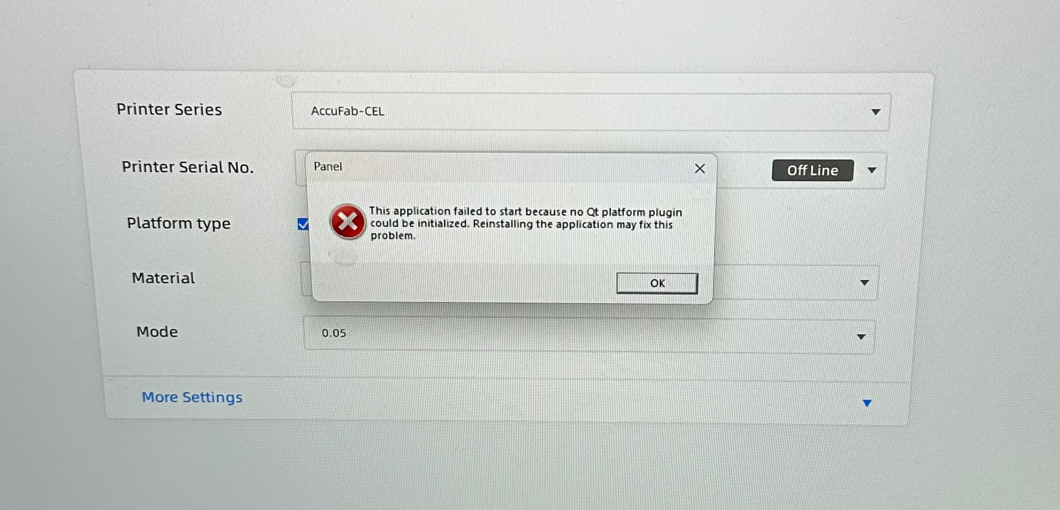
Cause:
Incomplete Panel files. This problem usually appears after the software has been used multiple times and may be caused by repeatedly opening and closing the design software.
Solution:
Download the file provided below and copy it to the affected computer.
Run the file as an administrator, which will automatically delete the related corrupted files.
After that, launching the design software should work normally again.