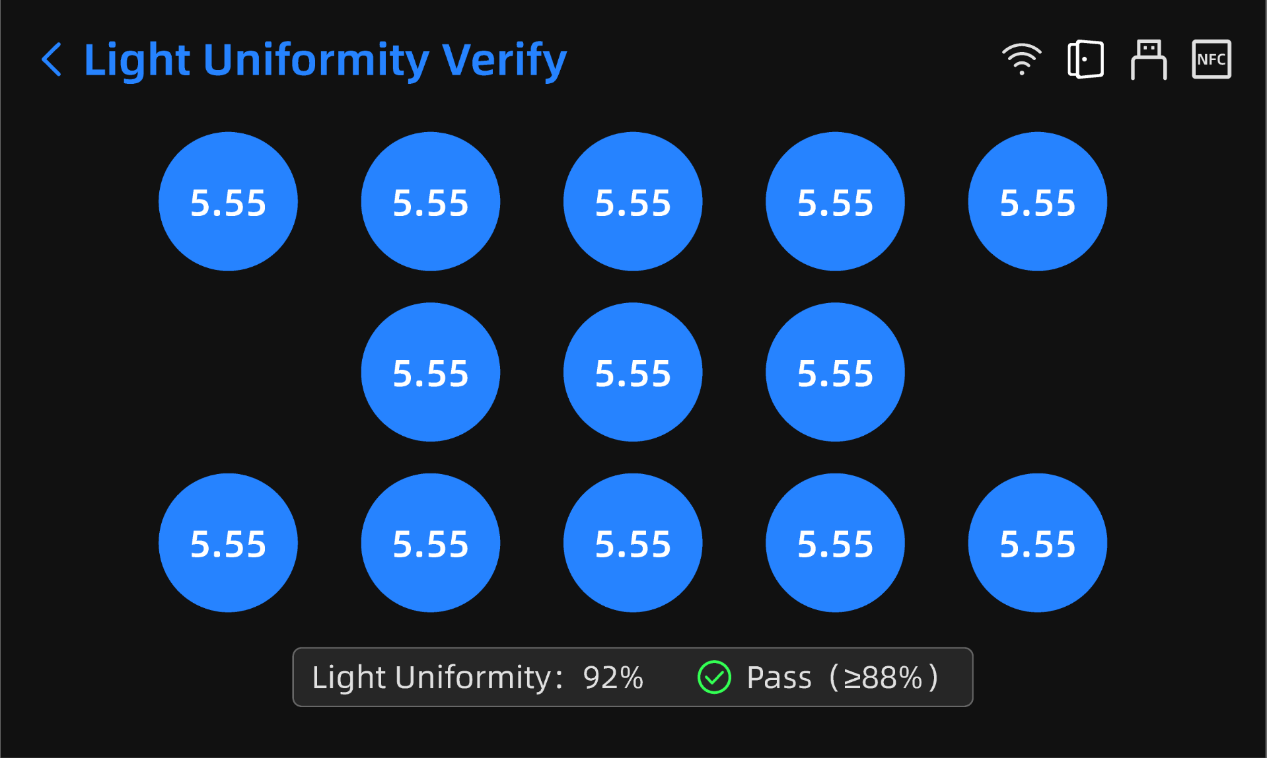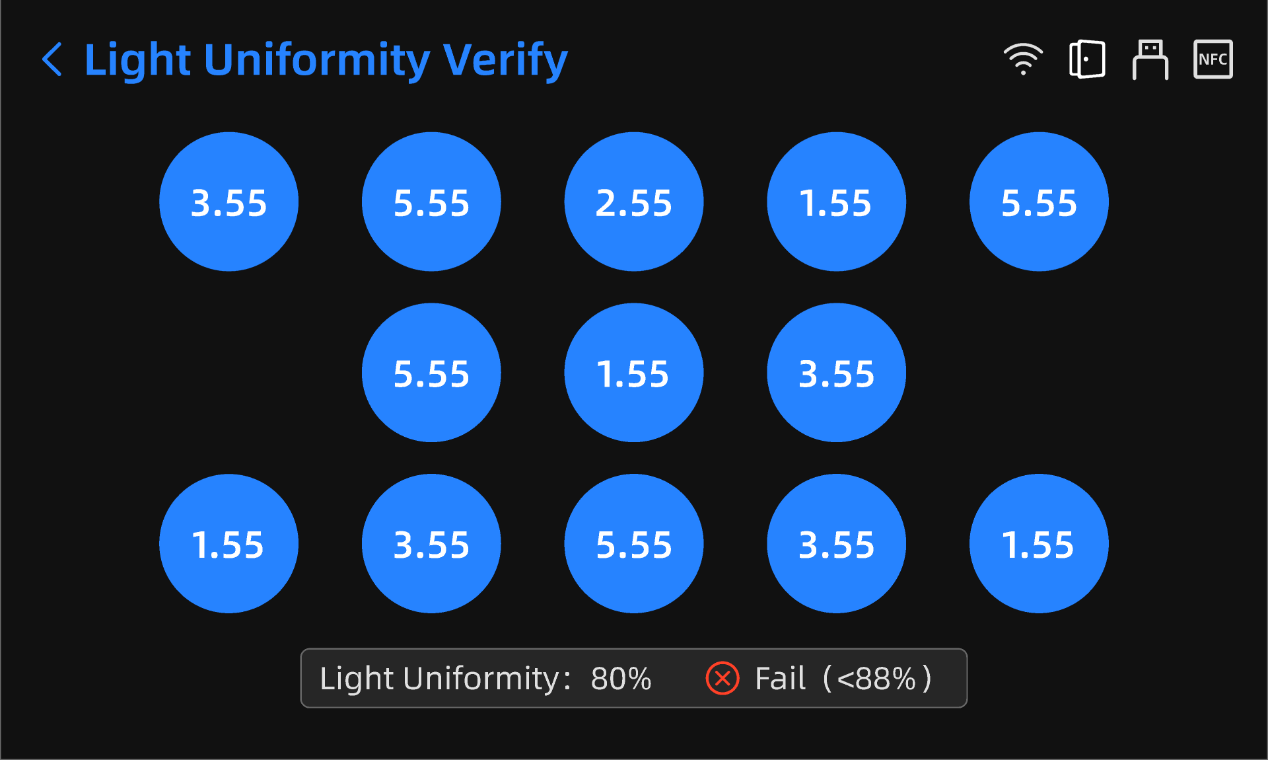
For DLP Models (D1S)
Entering the Light Uniformity Verifiy Function
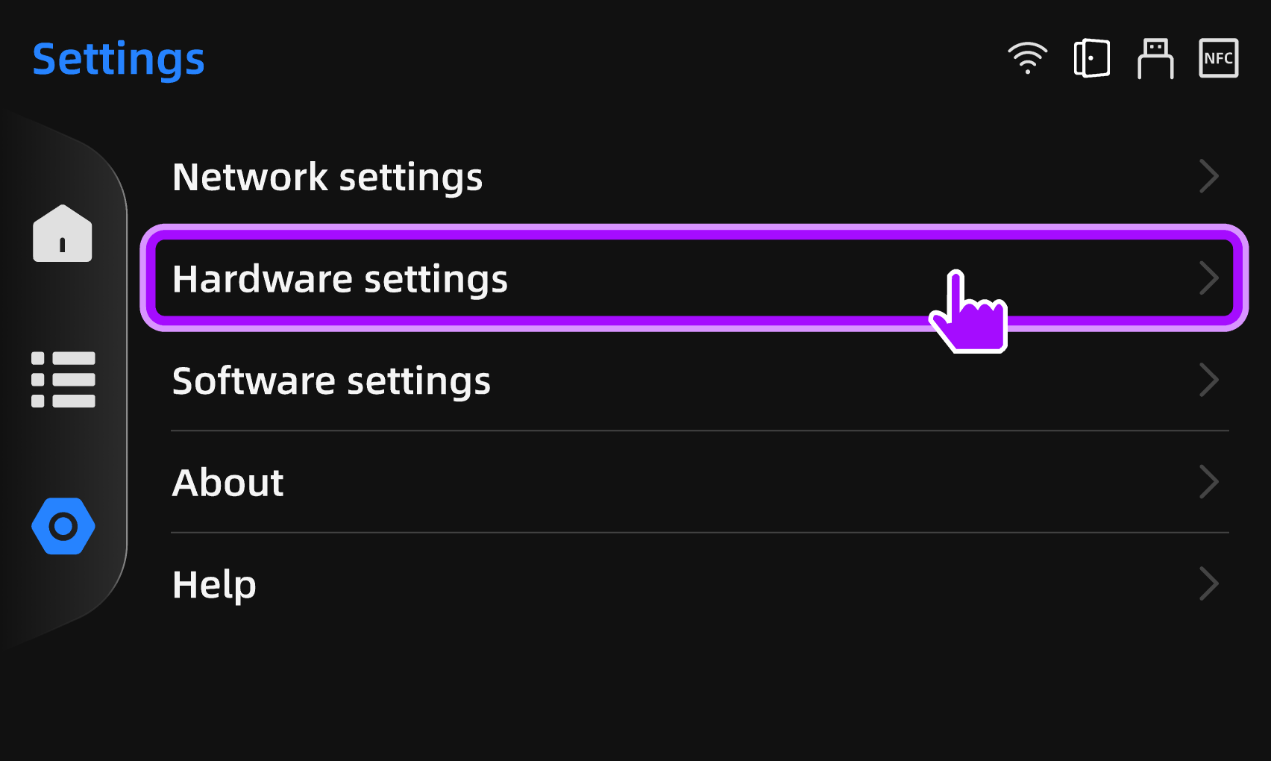
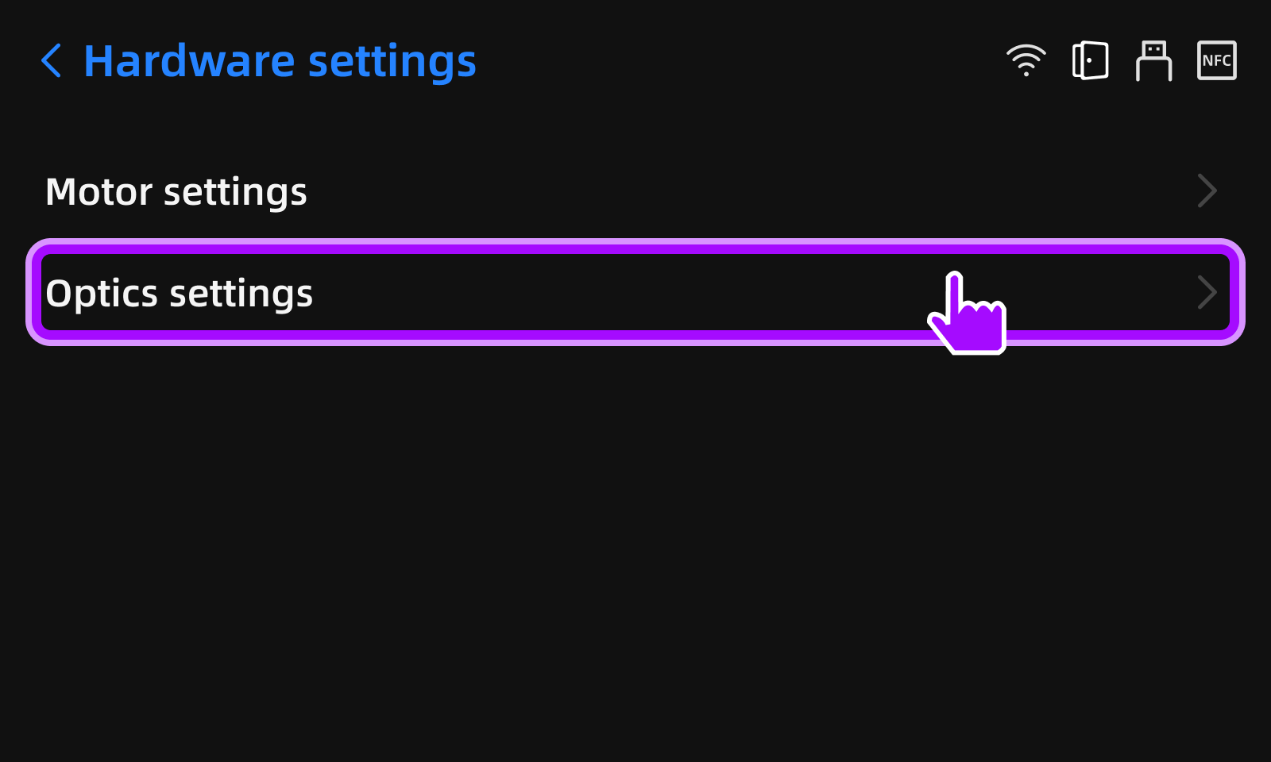
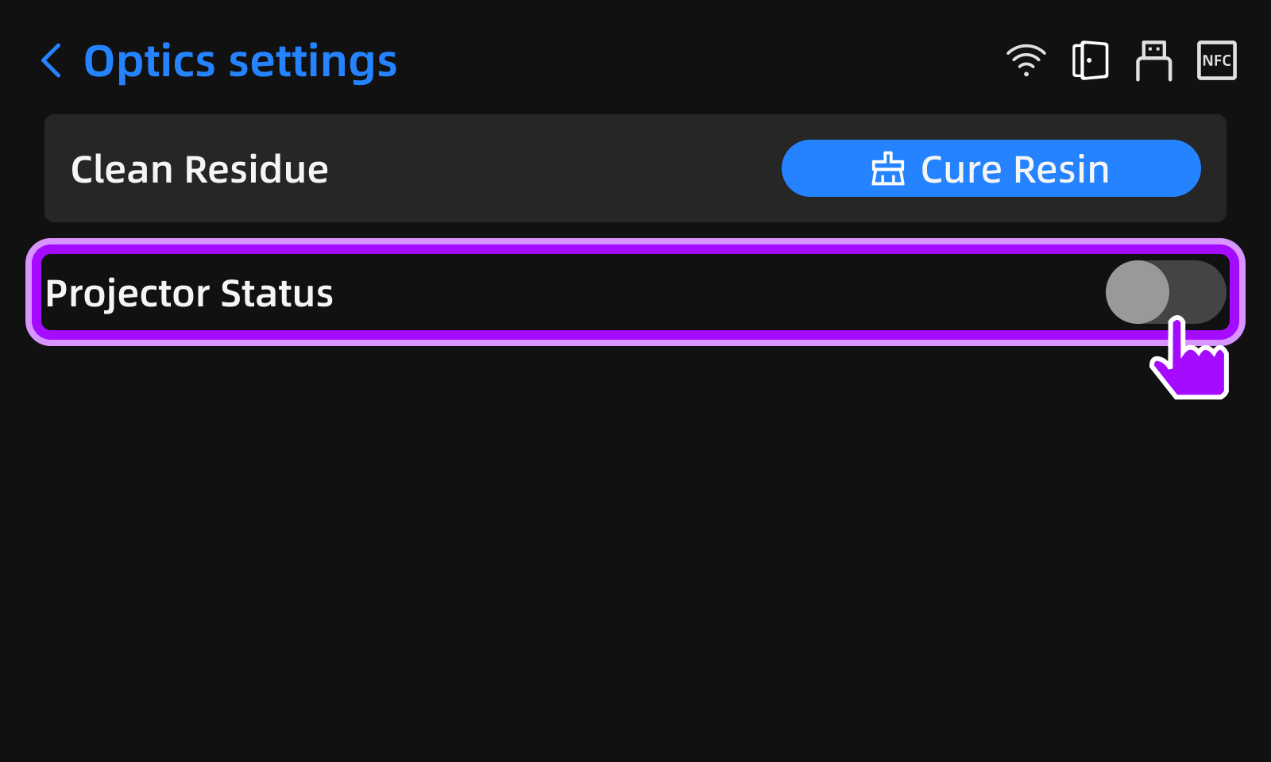
- In the FabWare software, go to the Settings → Hardware Settings → Optics Settings page, turn on the projector Status switch, and click the Start Verify button.
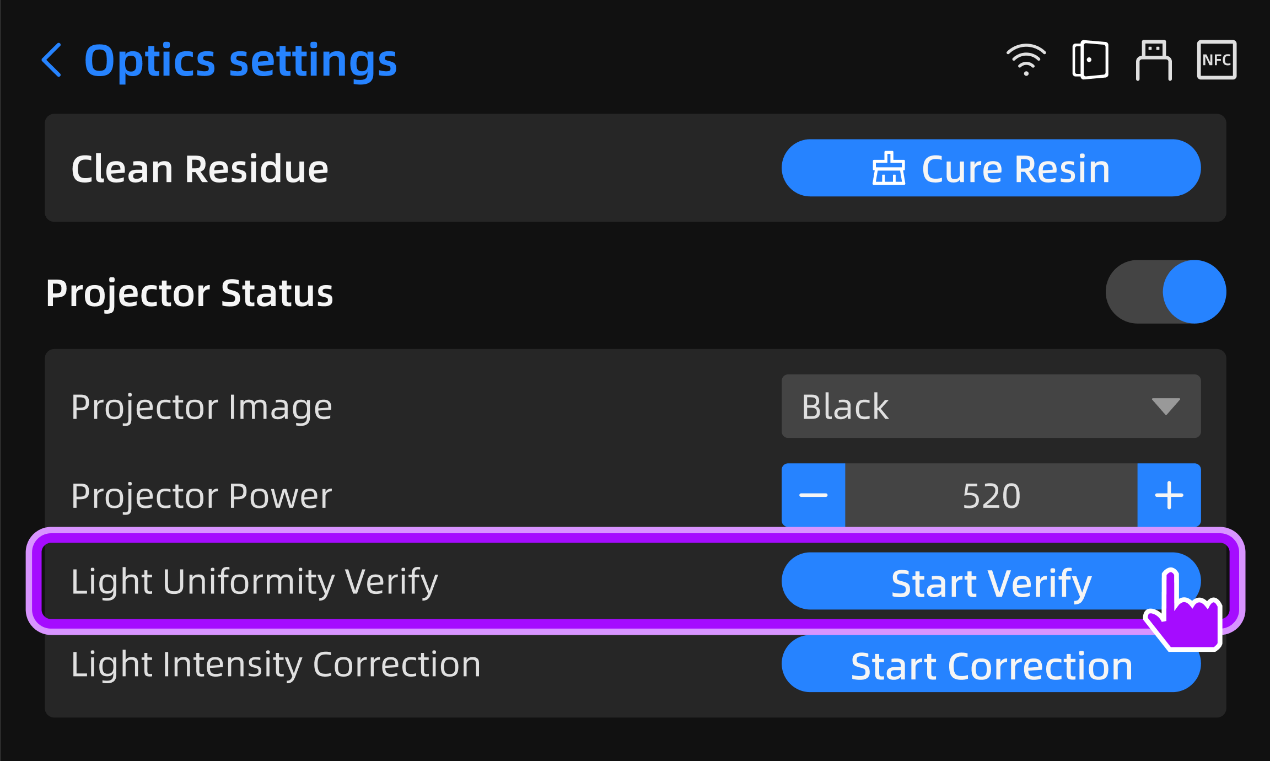
- The light uniformity verifiy process begins.
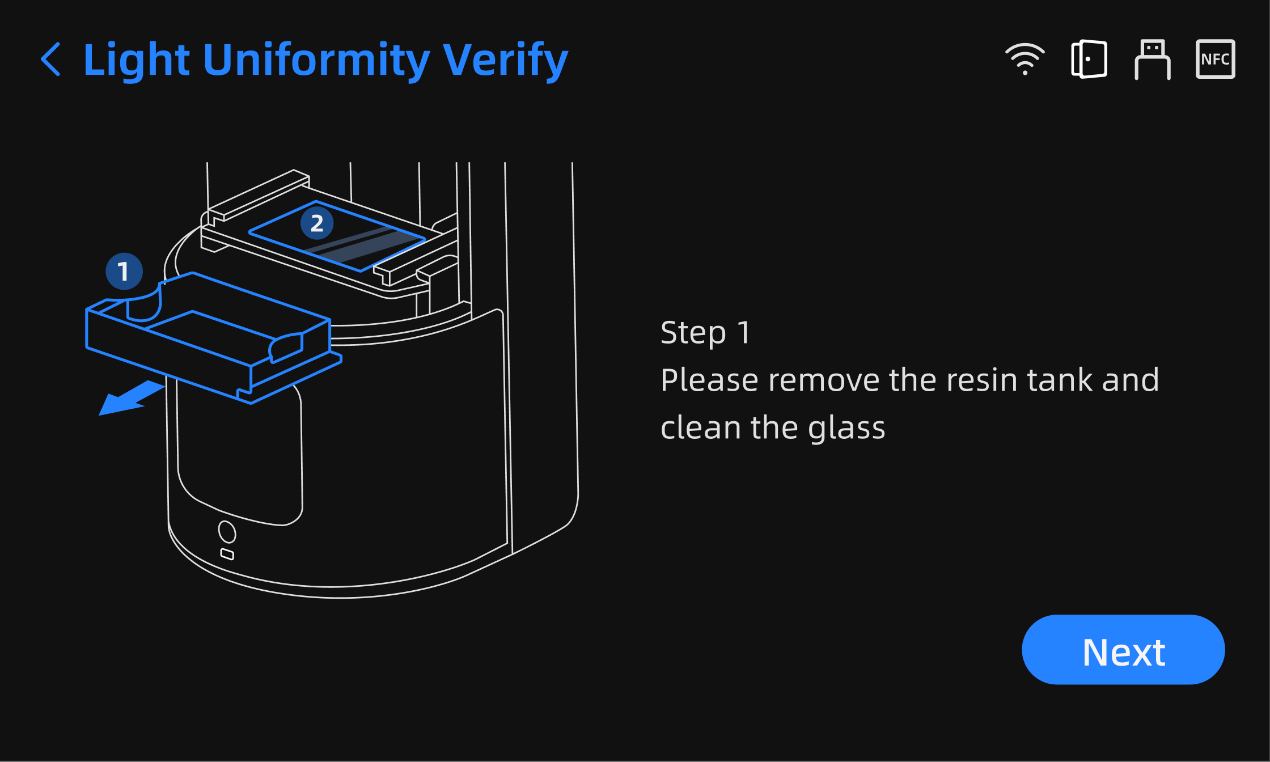
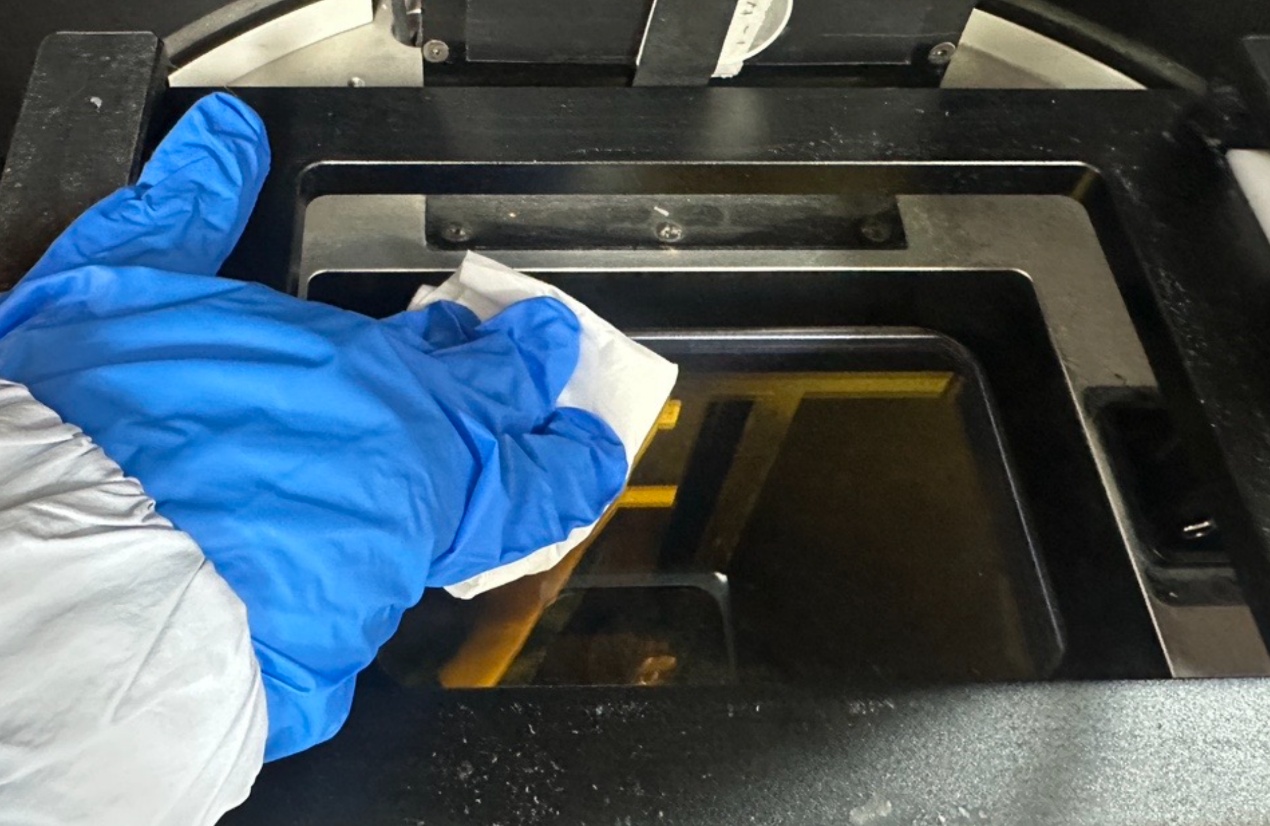
- Step 1: Refer to the guide image, remove the resin tank, and clean the screen thoroughly. Then click Next.
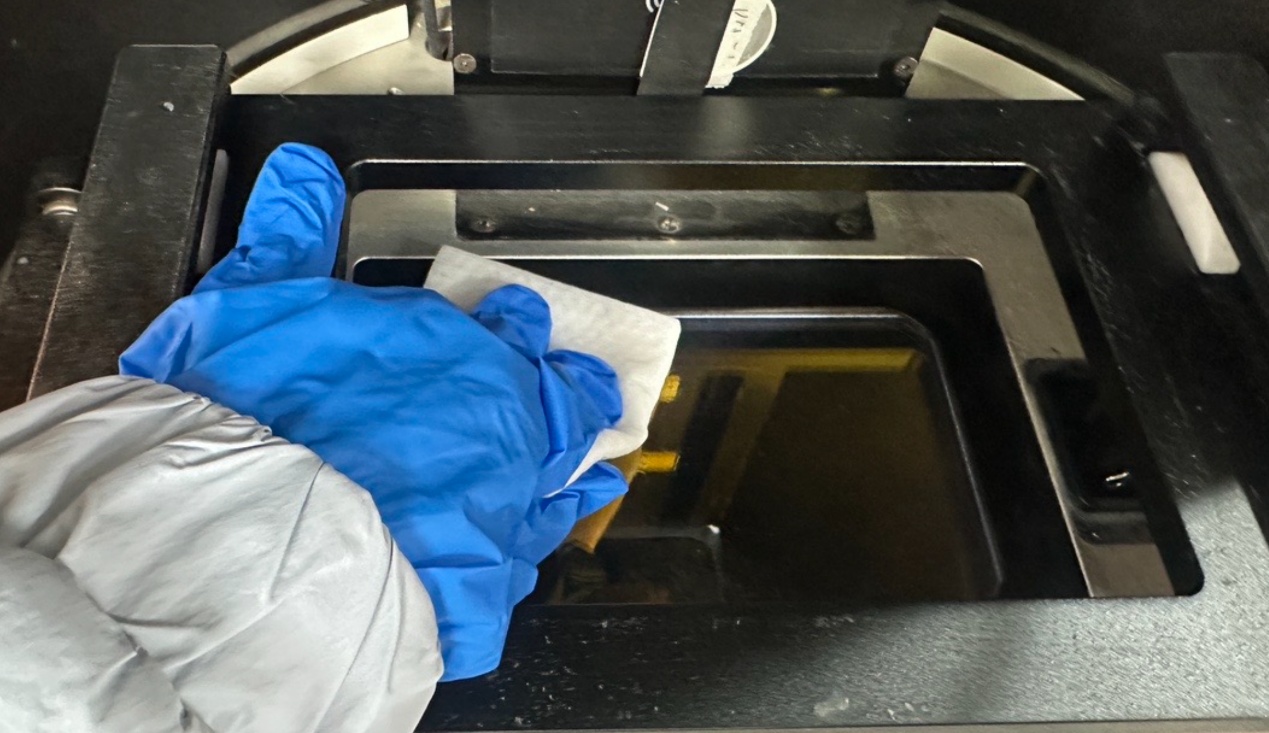
a. Clean the screen with a clean wet wipe, then dry it with a dry cloth. Ensure the screen is free of stains, resin, etc.
- Step 2: Please insert the power meter into the USB port and place the probe on the lighted spot on printer screen in order to collect the optical power. After the detection, the value will displayed on the corresponding circle within the software.
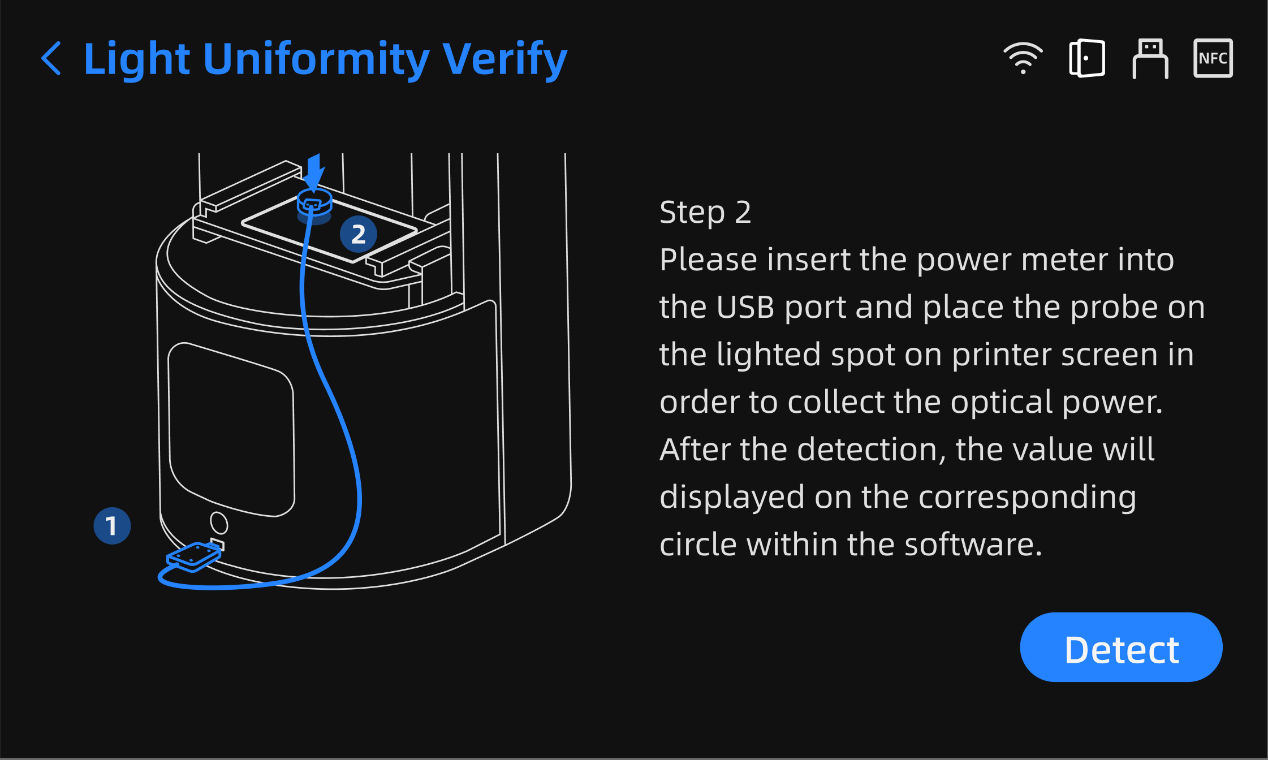
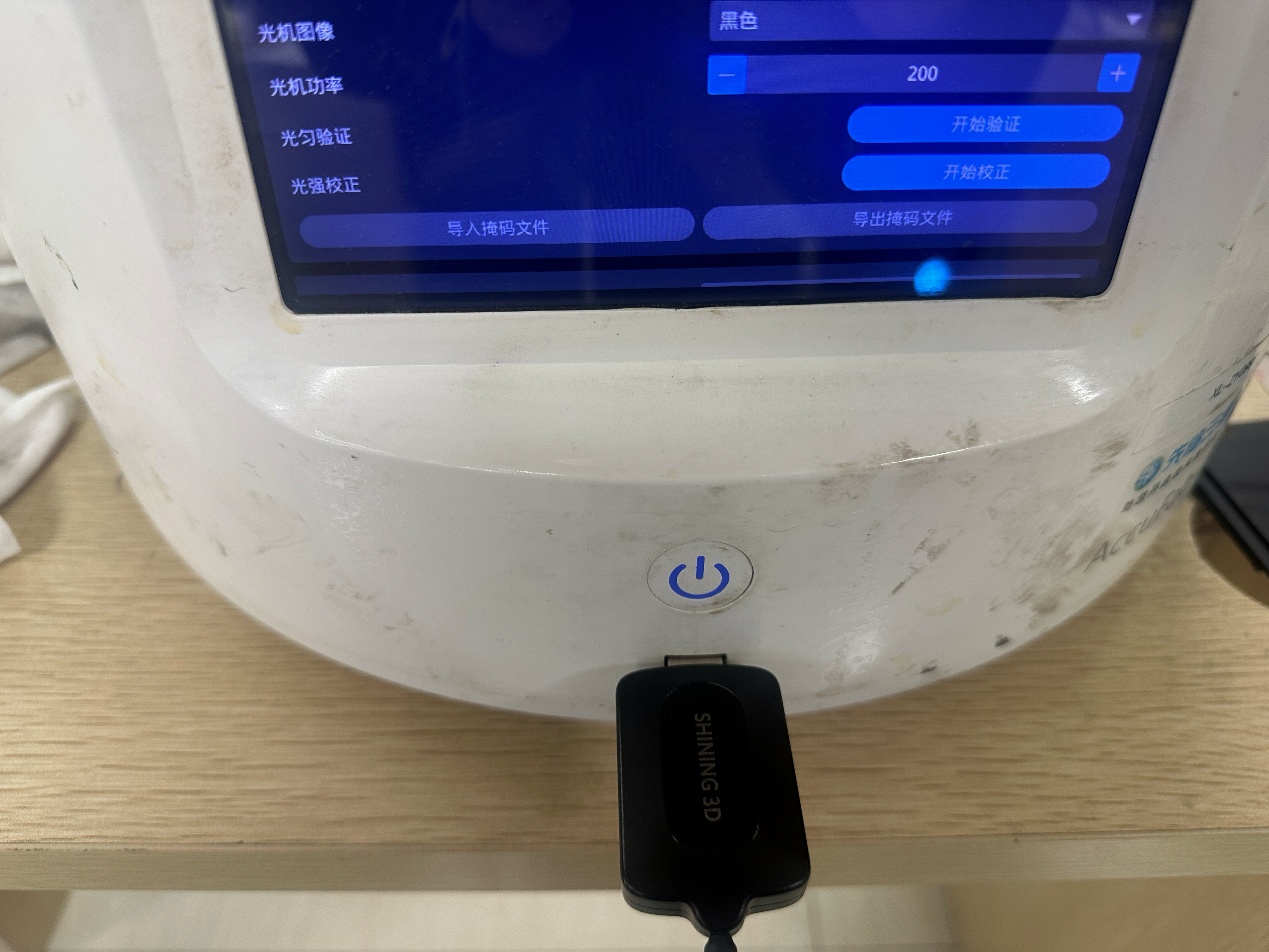
b. Insert the optical power meter into the USB port located on the front of the printer, below the software screen (Verification can't start if it's not inserted).
c. Then, place the probe of the optical power meter aligned with the circular light spot illuminated at the top-left corner of the screen. Don't move it after placement.
d. Wait until the value in the center of the corresponding circular indicator on the software screen stops changing and the next circular indicator appears. Then, move the probe to the next illuminated circular light spot on the screen.
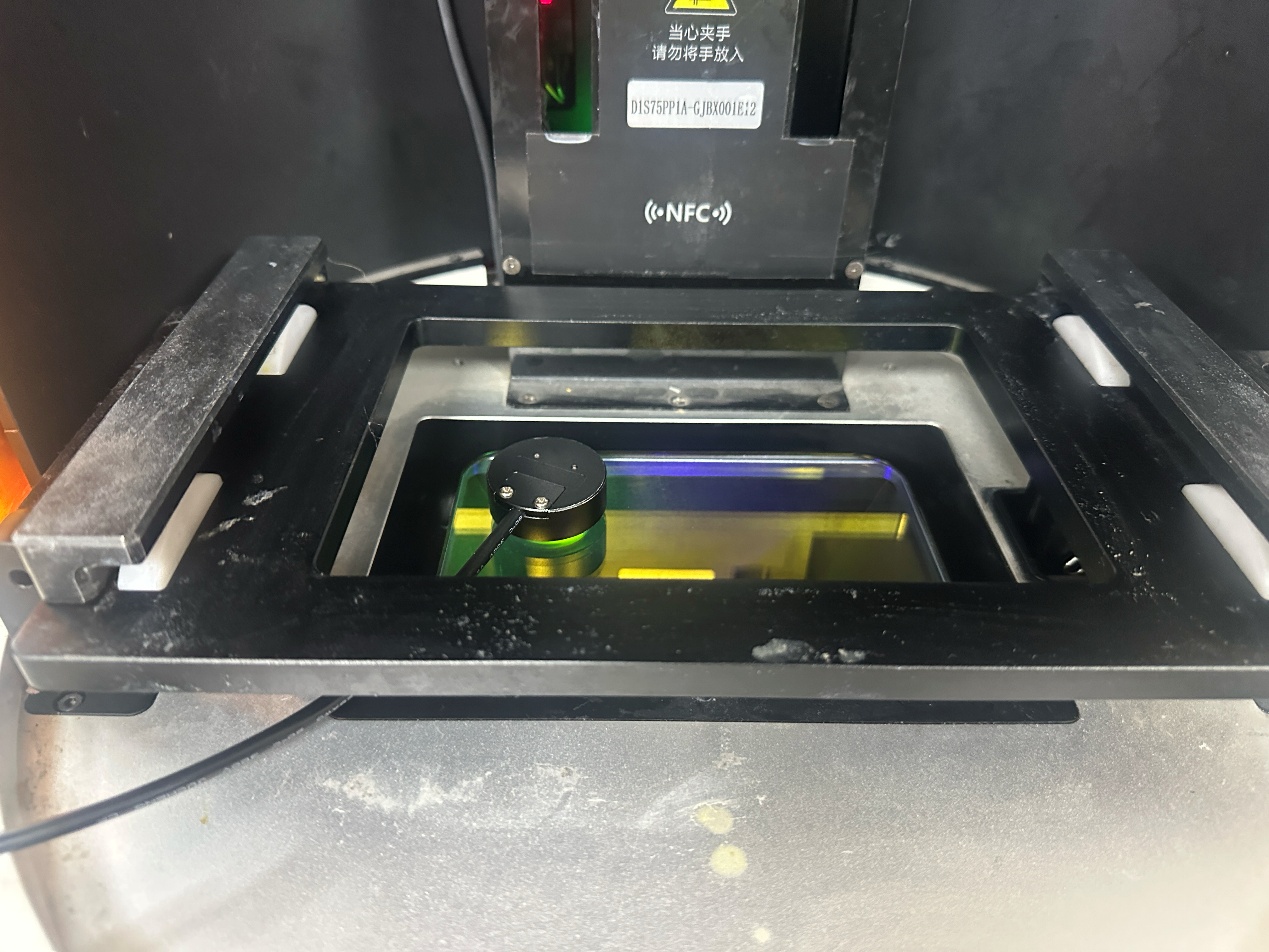
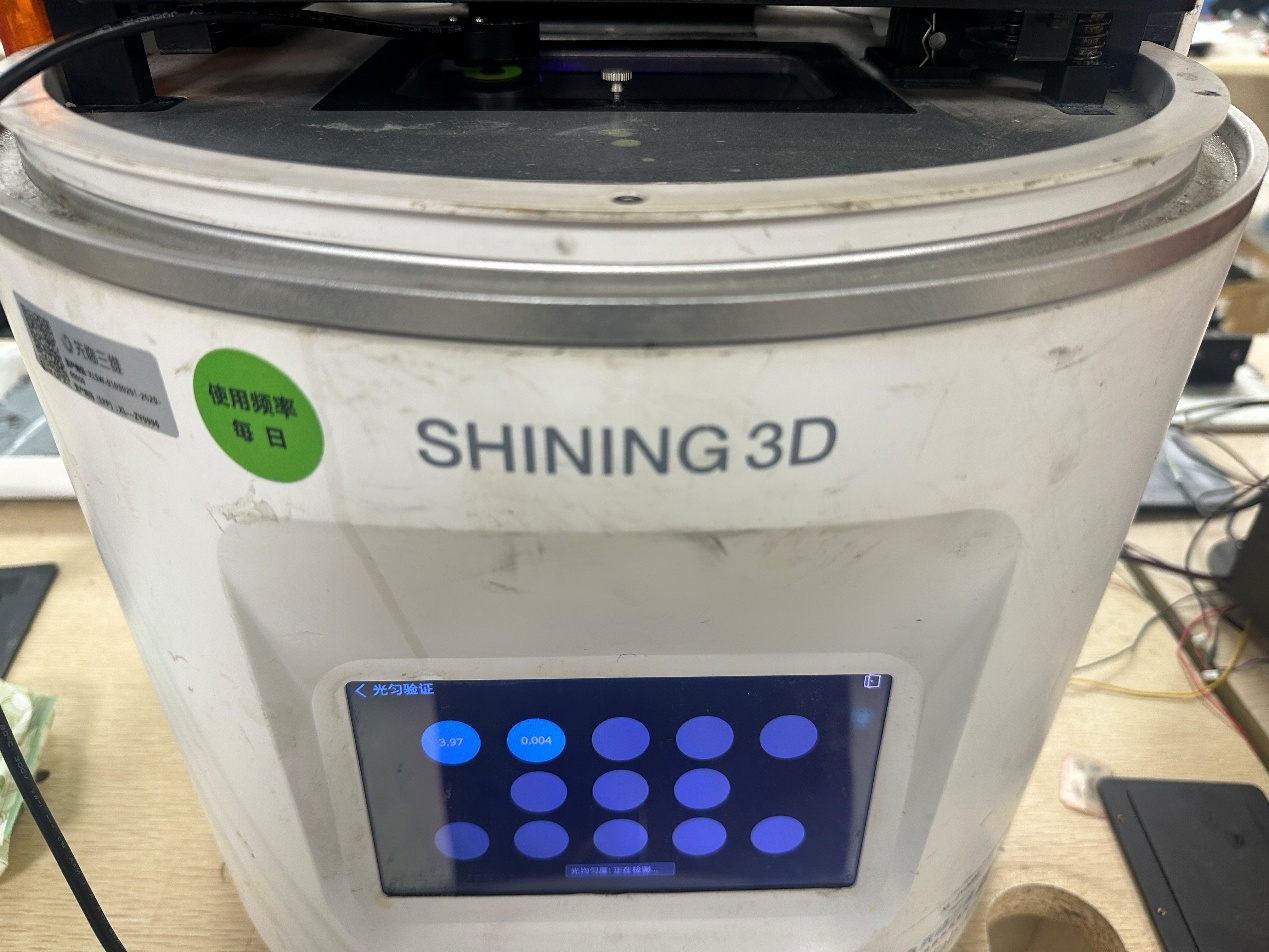
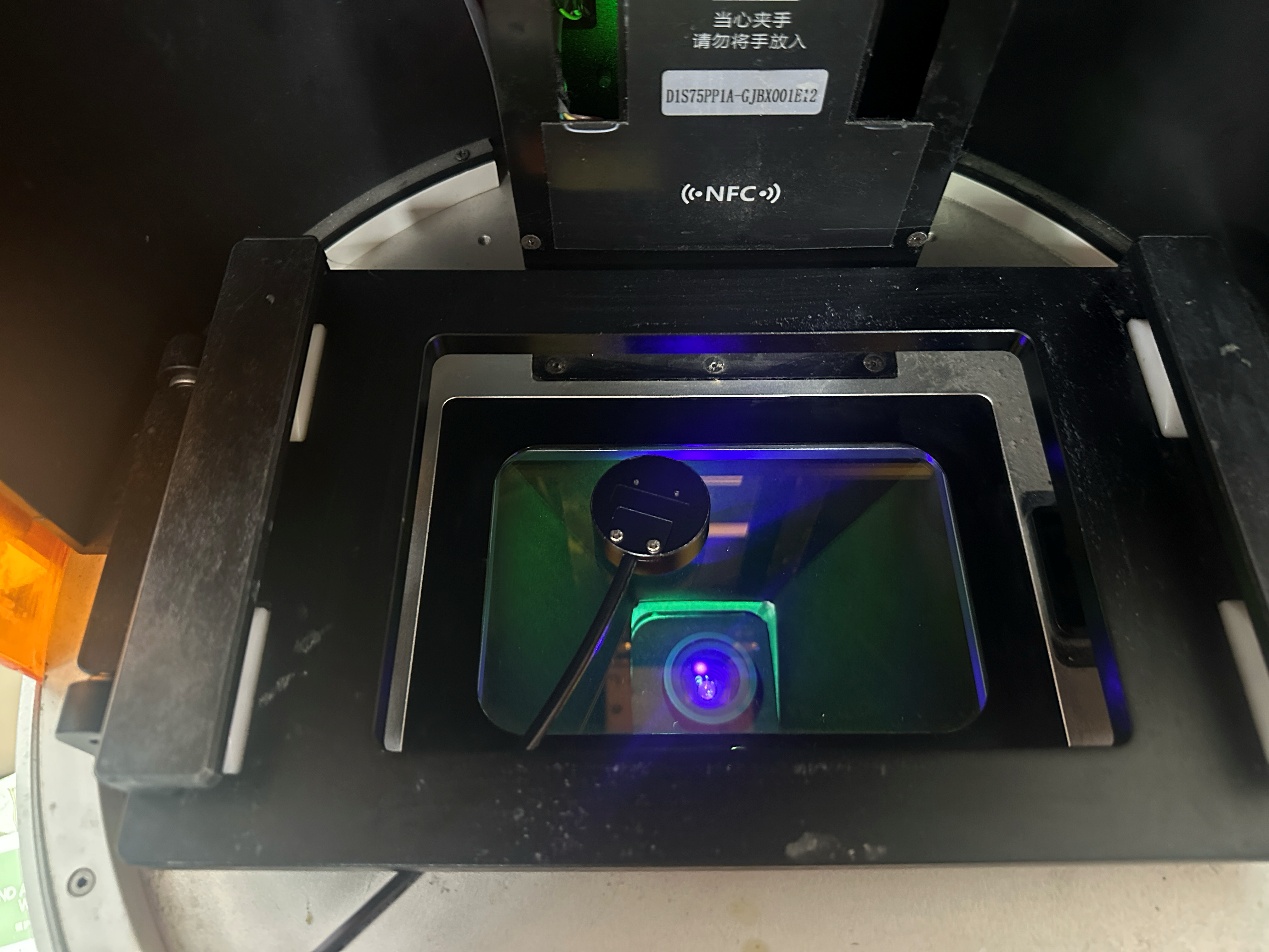
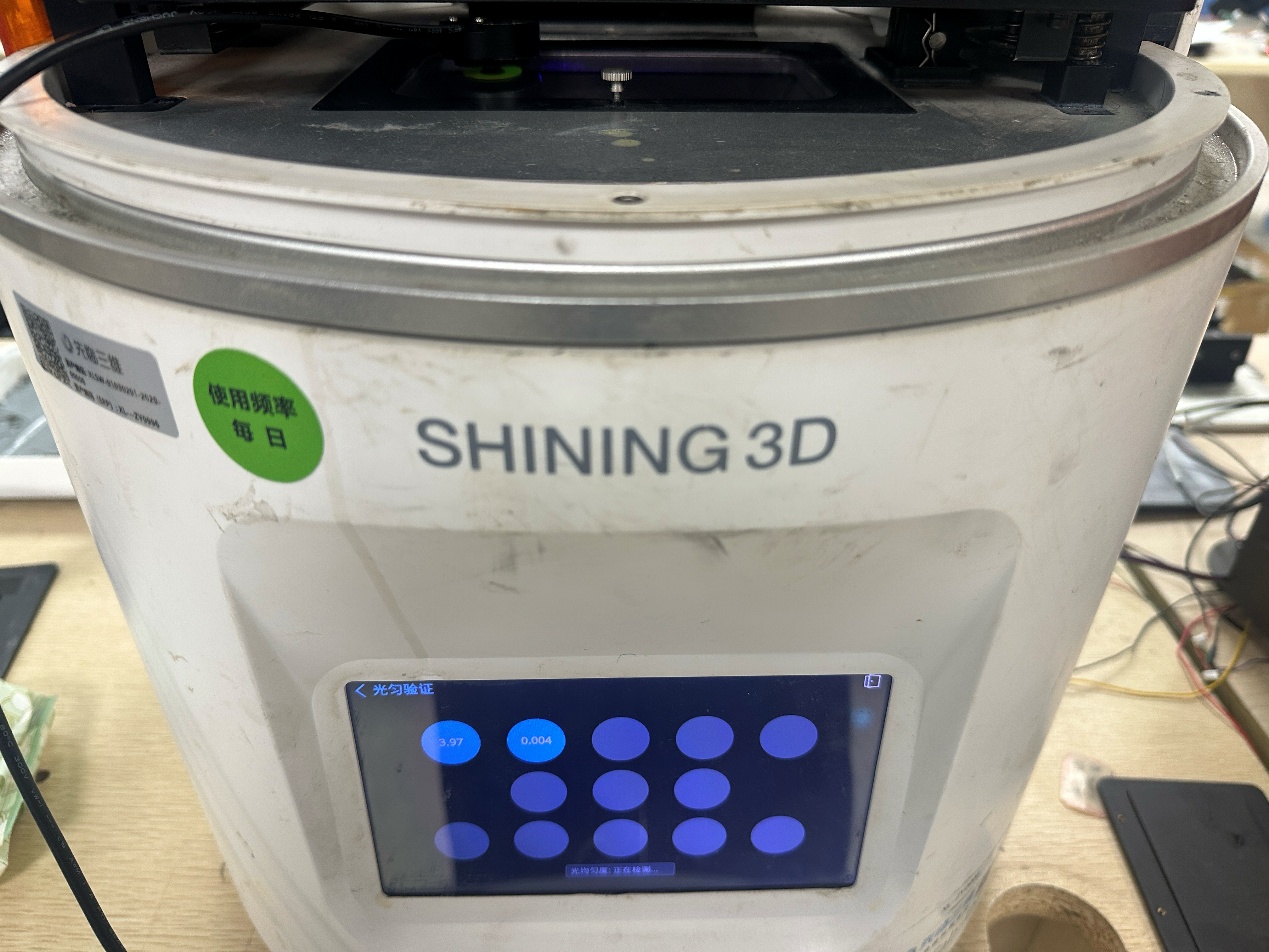
e. Repeat this process, sequentially placing the optical power meter probe on all 13 circular light spots to collect optical power values.
f. Once all 13 gray circular indicators turn blue and display values, data collection is complete. The light uniformity percentage and verification result will be displayed at the bottom of the software page. The result is Pass when light uniformity is ≥88%; the result is Fail when light uniformity is <88%.