
Cloud Access Quick Guide
For customers who cannot log in, sync, or open cloud functions.
What to allow
Allow these domains and ports on the customer network firewall, router, or security device.
Item | What to allow |
Main domains | *.dental3dcloud.com |
Special domains | mqtt.dental3dcloud.com |
Required ports | TCP 80, 443, 1883, 8883, 8084, 2023 |
Important note | Domain allowlist is recommended. Do not rely only on fixed IP addresses. |
What to do
1. Log in to the firewall, router, or security device.
2. Add the required domains to the allowlist or whitelist.
3. Allow outbound TCP ports: 80, 443, 1883, 8883, 8084, 2023.
4. Save, apply, and test the software again.
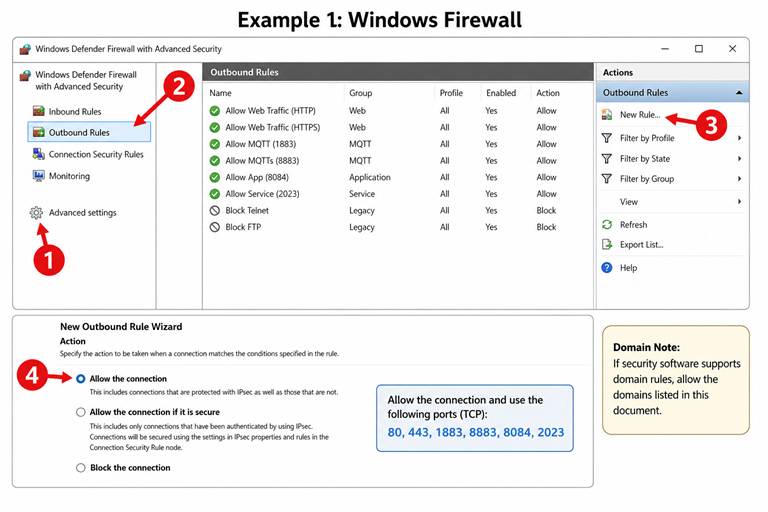
Example 1: Windows Firewall
Create an outbound allow rule for the required ports.
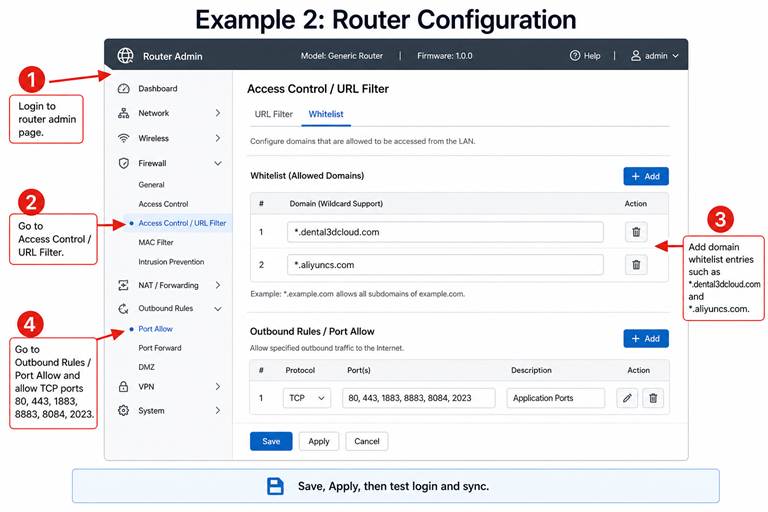
Example 2: Router
Add the domains to the whitelist and allow the required ports.
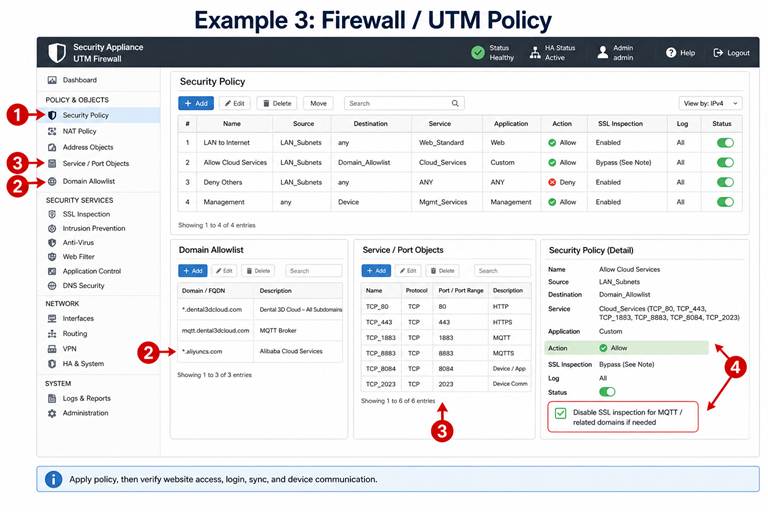
Example 3: Firewall / UTM
Create a policy to allow the domains and ports. Disable SSL inspection for MQTT if needed.
Quick check
If it still does not work, check these 3 items:
1. The domains are in the whitelist.
2. The ports are allowed.
3. SSL inspection or proxy filtering is not blocking MQTT / cloud traffic.
If the customer is not the network administrator, please send this document to the local IT administrator.