
Some users have reported that after importing orders converted on the cloud platform into the software, the Scanbody information is missing.
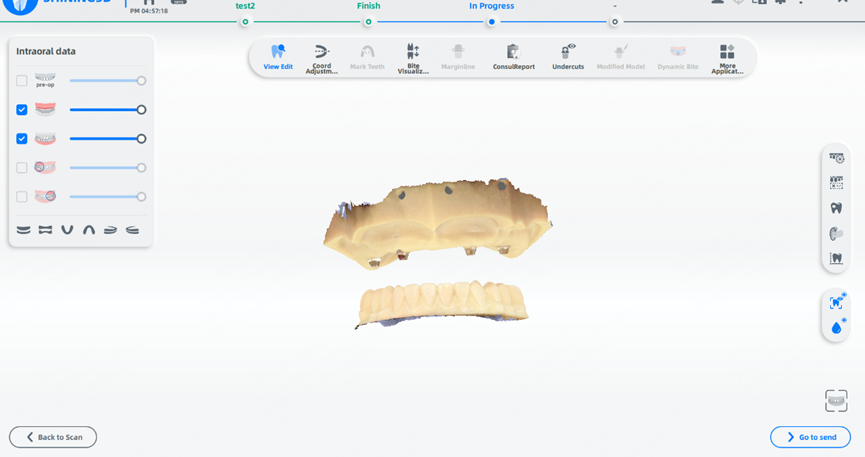
This issue has been confirmed to be caused by data inconsistency between cloud-created data and software-side data structures. Therefore, the cloud platform currently restricts importing cloud-converted files back into the software, in order to prevent data errors.
To accommodate different usage scenarios, the following two Scanbody conversion methods are recommended. Please choose the appropriate option based on your actual situation:
1. Non-Lab Conversion (Clinic-Side Conversion)
Applicable scenario: When no device is currently connected
Workflow:
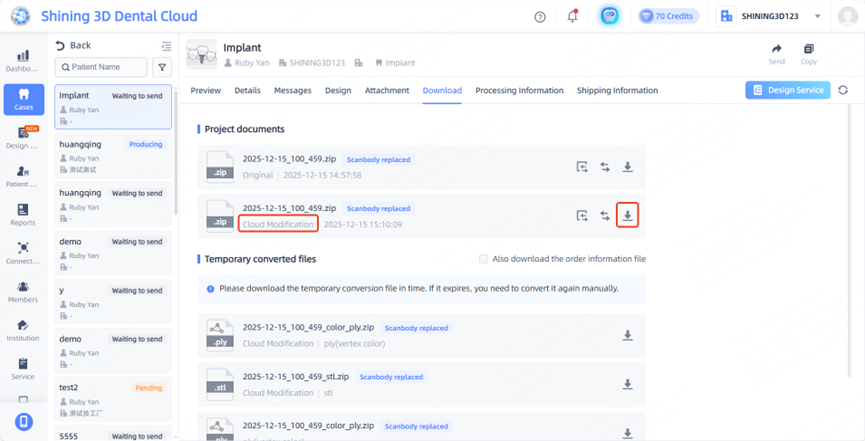
- After completing the required modifications on the cloud platform, go to download interface,
- When downloading the file, be sure to select the version that displays “Cloud Modification”;
- After downloading, send the file to the lab using traditional methods, such as email.
2. Software-Side Conversion
Applicable scenario: When a device is available
Please ensure that the connected device is the same one used for the original order.
Recommended steps:
- If you need to keep the original order, first duplicate the order that requires modification;
- Return to the scanning interface and select the target-coded Scanbody, then complete the scan;
- Once scanning is complete, send the order to your cloud platform or directly to the lab.
We can click this article check how to converse the scanbody: Conversion
Important Notes
To ensure data integrity and proper order processing, please select the appropriate conversion method based on your available equipment, and avoid importing cloud-converted files directly into the software.
If you have any further questions, please contact our technical support team.