
Station Power On
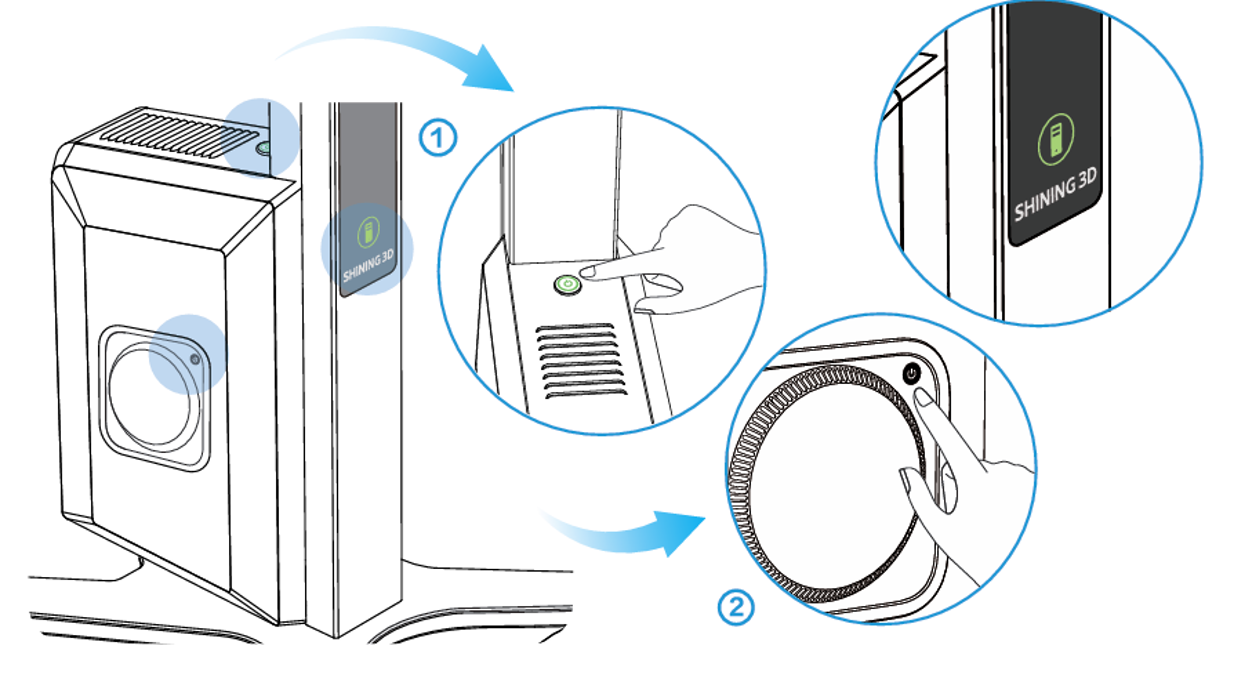
Press the power button on the tower box and wait until the indicator turns green, as shown in “①”.
Then press the computer switch on the side, as shown in “②”.
Once the computer is powered on, the LOGO indicator on the front panel and the screen will automatically light up.
Once the Station + MAC are powered on, the monitor should boot up normally, displaying the Dell/ Shining3D Logo then the Desktop.
If the monitor does not power on, please continue below.
Monitor Power On
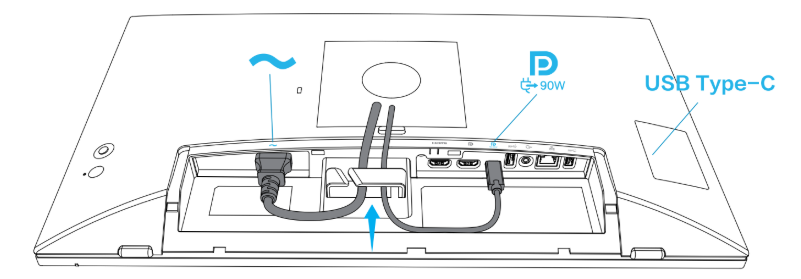
Ensure the power and display cable are properly connected to the monitor as shown.
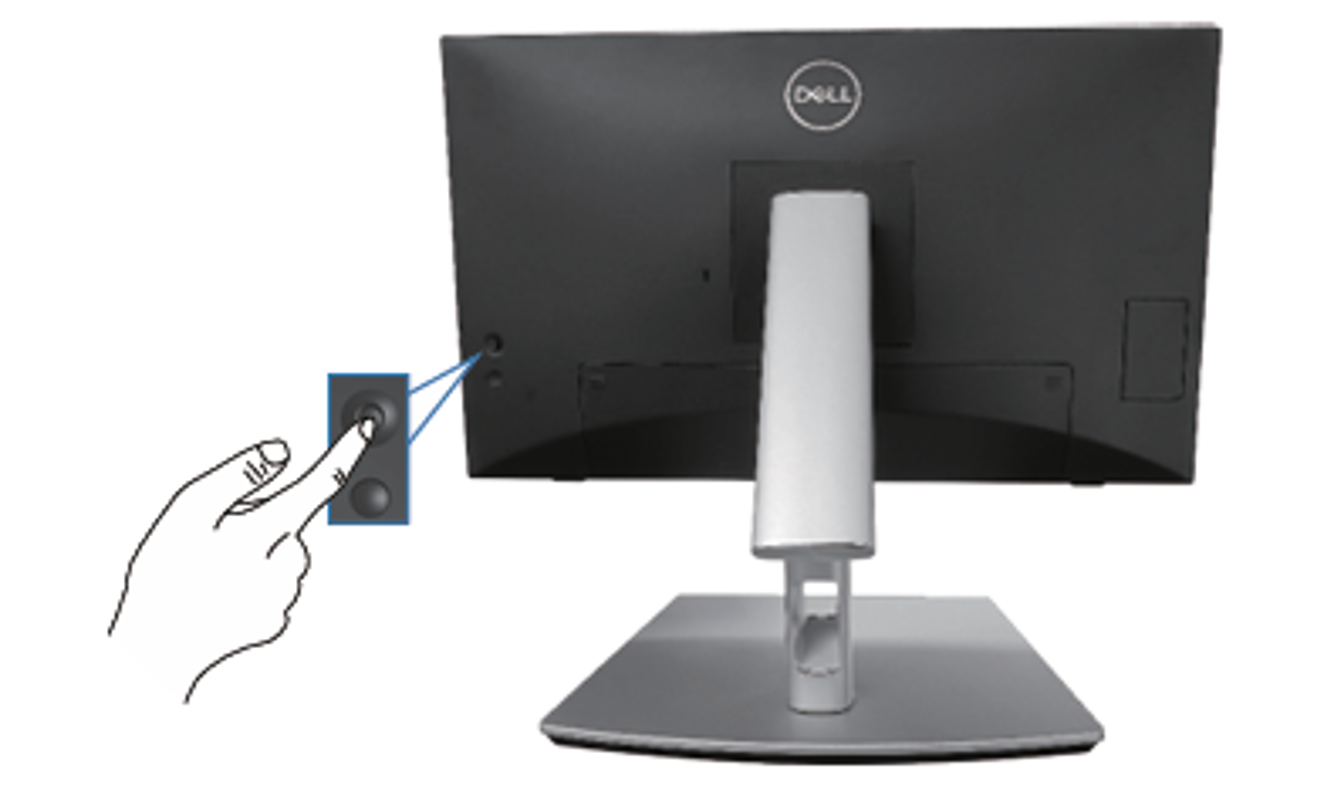
On the back of the monitor, there is the power on button and joystick/control.
1. Press the joystick to launch the Menu Launcher
2. Move the joystick up/down/left/right to toggle between options.
3. Press the joystick again to confirm the selection.
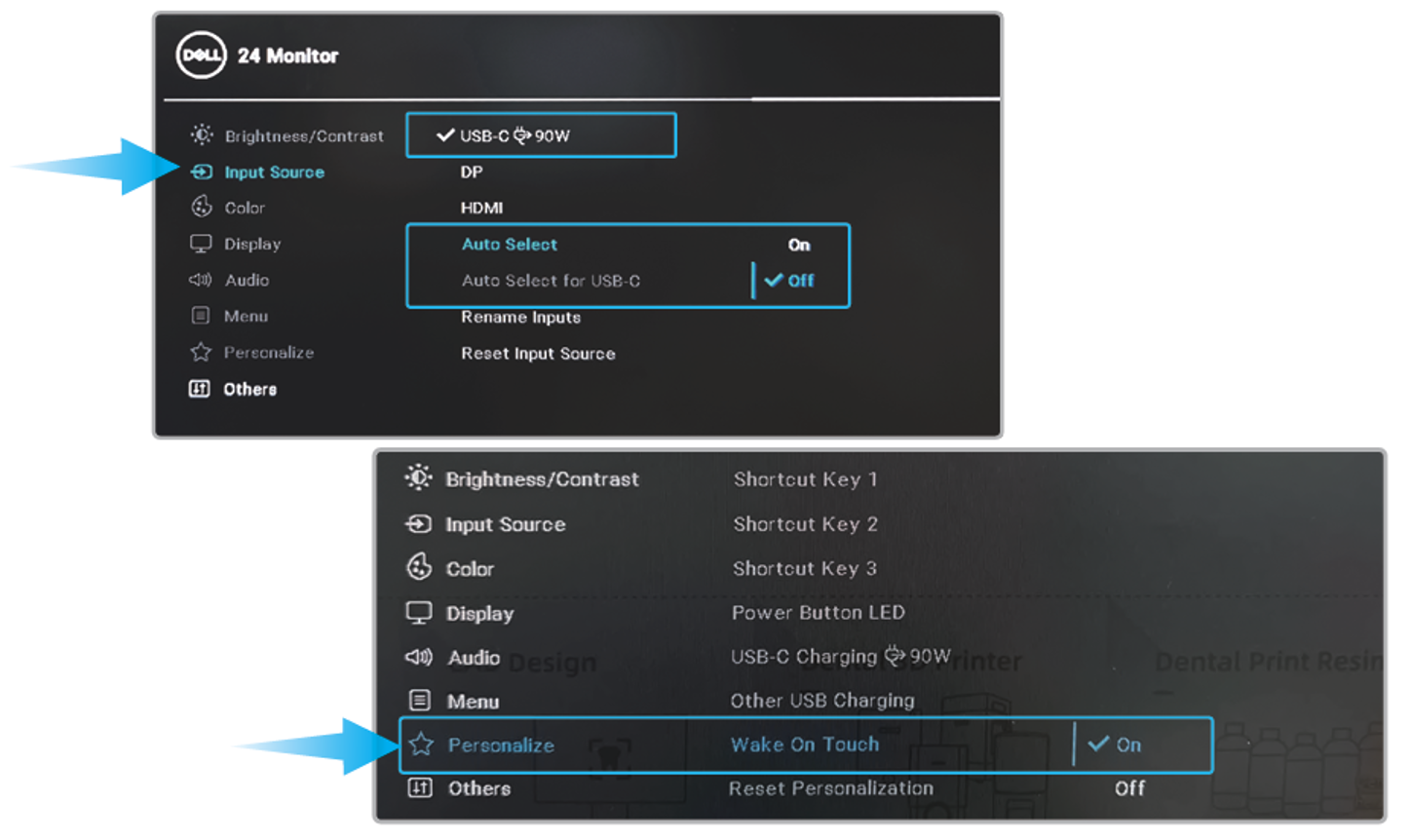
Navigate to Input Source and Personalize and adjust the settings.
- Ensure the USB C option is selected and Auto Select is OFF
- Uner Personalize, ensure wake upon touch is ON.
If power issues persist, please contact Dental Support Team