
The Aoralscan Elite Wireless system relies on stable wireless communication between the scanner, wireless base/router, and the connected PC/laptop. Because the system operates using RF (radio frequency) wireless communication, the surrounding wireless environment can directly affect scanner stability and performance.
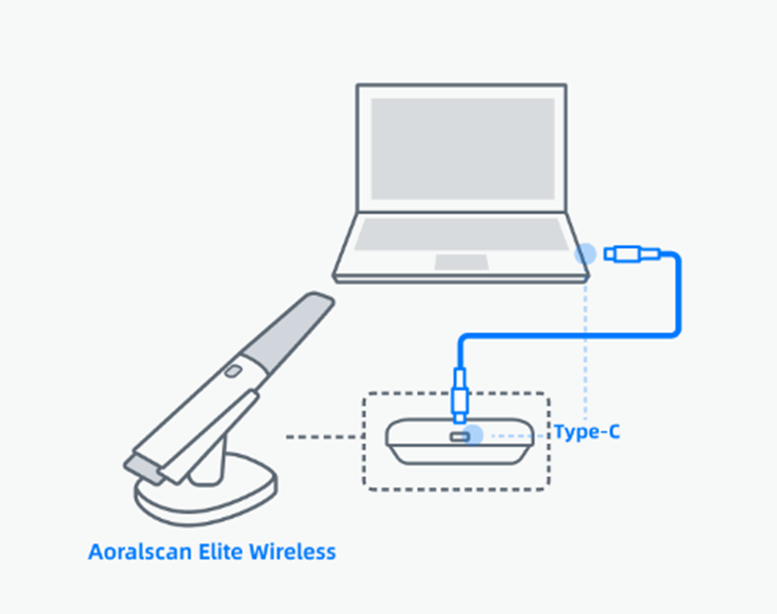
A stable wireless environment is important for maintaining reliable communication during scanning sessions. In environments with heavy wireless activity, nearby Wi-Fi networks or electronic devices may interfere with the scanner connection, which can result in intermittent communication issues or connection instability.
Common symptoms of wireless interference may include:
- Difficulty connecting the scanner
- Intermittent disconnects
- Delayed scanner response
- Unstable scanning sessions
- Pairing or communication failures
The Aoralscan Elite Wireless IFU notes that portable or mobile RF communication devices may affect scanner performance and recommends keeping the scanner away from strong electromagnetic interference sources.
Preferred 5 GHz Usage
The scanner system performs best in stable 5 GHz environments.
R&D recommends prioritizing cleaner 5 GHz channel ranges such as:
- Channels 36–64
- Channels 149–165
These ranges generally provide:
- Lower interference
- Better bandwidth
- Improved real-time communication stability
Avoid Automatic Channel Selection
Many routers use automatic channel selection, which may place the device on congested or overlapping channels.
When possible:
- Manually configure the wireless channel
- Use cleaner/non-overlapping 5 GHz channels
- Avoid frequently changing channels
Physical Placement Recommendations
For best wireless performance:
- Place the wireless base/router in an open area
- Avoid placing it behind metal objects or under desks
- Keep distance from:
- Other routers/access points
- Wireless phones
- Bluetooth-heavy devices
- High-density electronic equipment
Reduce RF Interference Sources
Nearby RF-emitting devices can affect scanner communication.
Potential interference sources include:
- Nearby Wi-Fi networks
- Mesh wireless systems
- Wireless cameras
- Bluetooth devices
- USB 3.0 noise
- Mobile phones placed near the base/router
The IFU also recommends maintaining separation from nearby RF communications equipment to reduce performance degradation.
Troubleshooting Recommendations
If wireless communication issues occur:
1. Verify Environmental Behavior
Test the scanner in another location if possible.
- If the issue disappears in another environment, this strongly suggests local wireless interference rather than hardware failure.
2. Reboot Wireless Components
Restart:
- Scanner
- Wireless base/router
- PC/laptop
This may clear temporary communication conflicts.
3. Check Wireless Channel Usage
Use a Wi-Fi analyzer tool to identify:
- Congested channels
- Overlapping nearby networks
- Excessive RF activity
4. Manually Set Cleaner 5 GHz Channels
Avoid:
- Auto channel mode
- Congested channels
Prefer stable 5 GHz channels recommended by R&D.
5. Increase Separation from Other Electronics
Move the wireless base/router away from:
- Other wireless access points
- Docking stations
- High-power electronics
- Dense cable bundles
6. Confirm Stable Power and USB Connection
Ensure:
- Stable USB-C connection to the PC
- No loose adapters or hubs
- Adequate system power
- Laptop power-saving settings are not disabling USB/network functions
IFU documentation available below for refrence.
https://drive.google.com/file/d/19IkIGwvCQpYC6Nl8f_H4E_jYTUKtnprm/view?usp=sharing