
Function Description
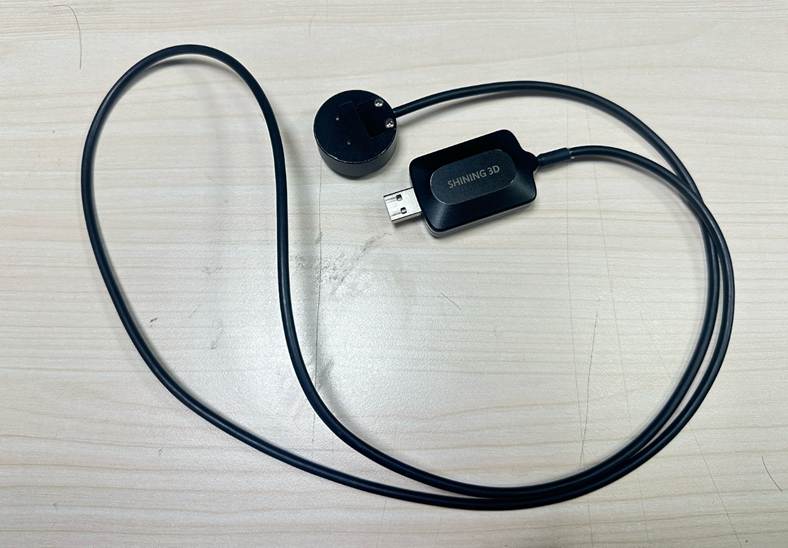
The optical power meter can be used to perform light intensity calibration and light uniformity verification for the printer.
Supported Models
D1S/L4DL4K/CEL/F1
Applicable Version
This function was introduced in Fabware version 3.7. If the Light Intensity Correction and Light Uniformity Verify functions are not present in your printer software, please update the software to the latest version.
Preparation
Prepare the optical power meter for checking the printer status.
Operating Procedures
Light Intensity Correction Function
For LCD Models(L4D/L4K/CEL/F1)—Using F1 as an Example
Entering the Light Intensity Correction Function
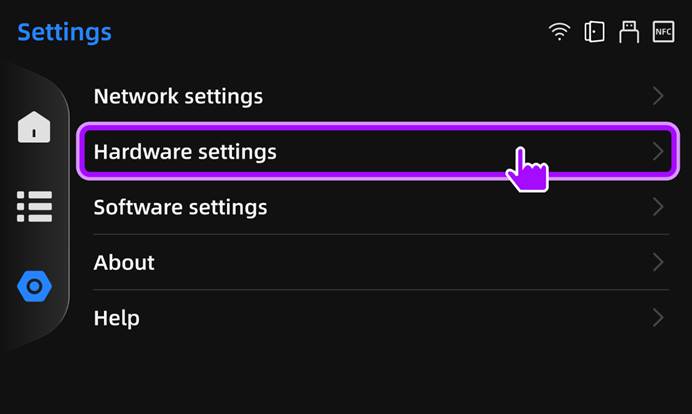
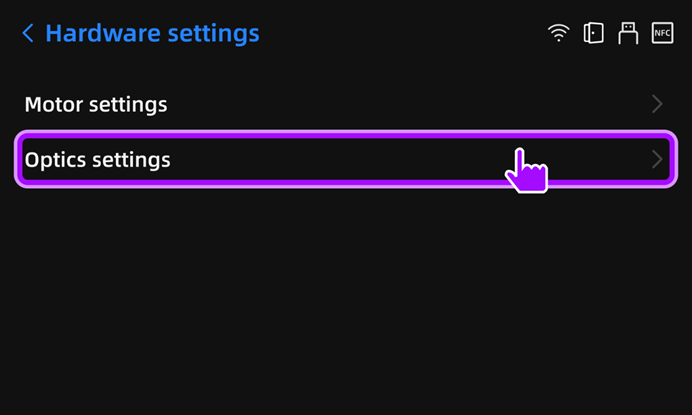
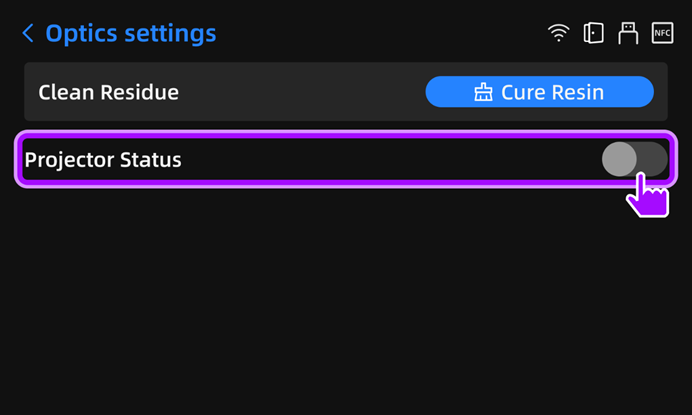
- In the FabWare software, go to the Settings → Hardware Settings → Optics Settings page, turn on the projector Status switch, and click the Start Correction button.
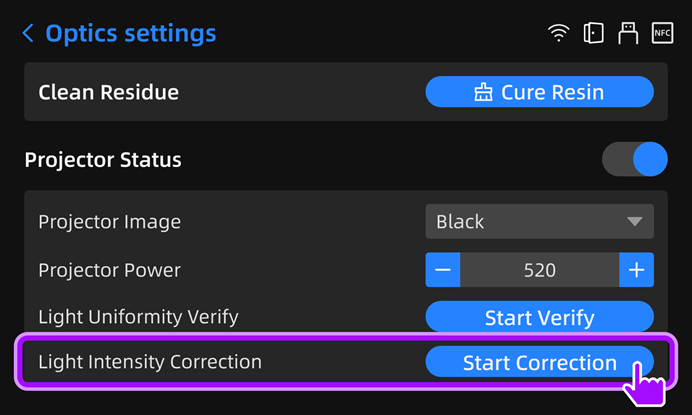
- The light intensity correction process begins.
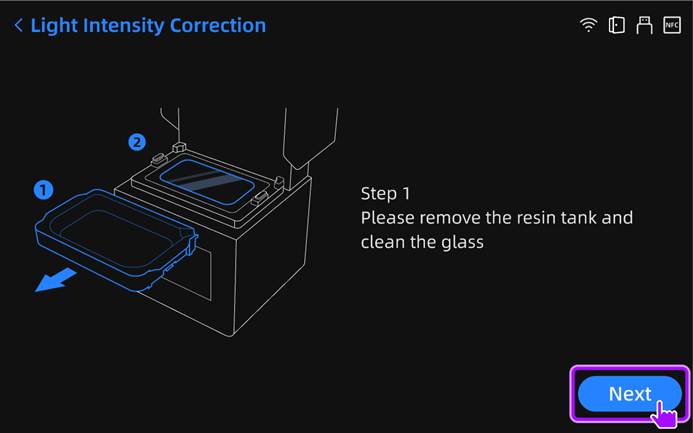
- Step 1: Refer to the guide image, remove the resin tank, and clean the screen thoroughly. Then click Next.
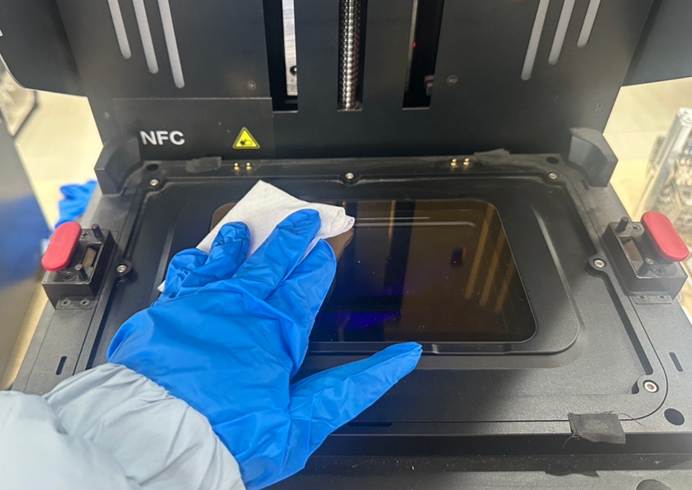
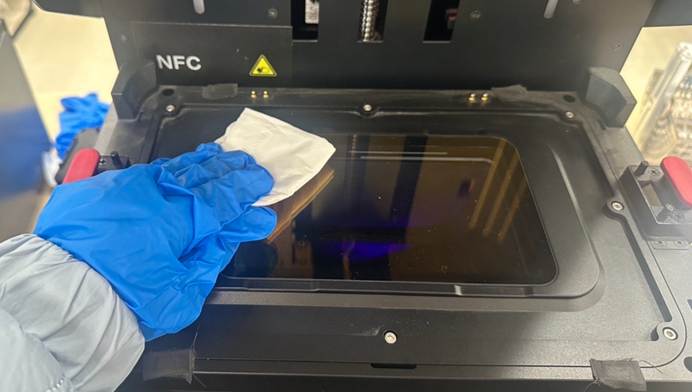
- Clean the screen with a clean wet wipe, then dry it with a dry cloth. Ensure the screen is free of stains, resin, etc.
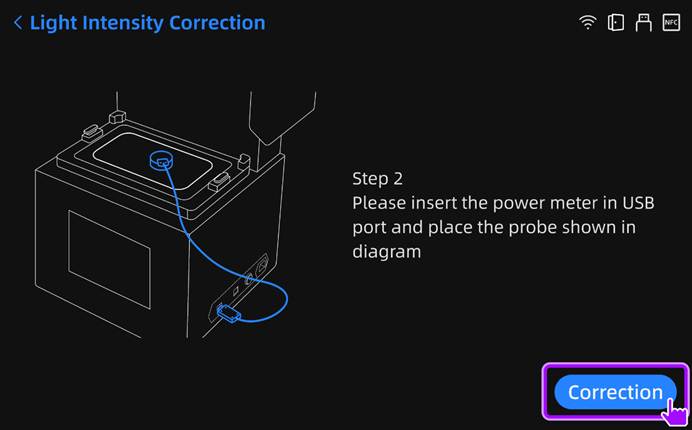
- Step 2: Please insert the power meter in USB port and place the probe shown in diagram
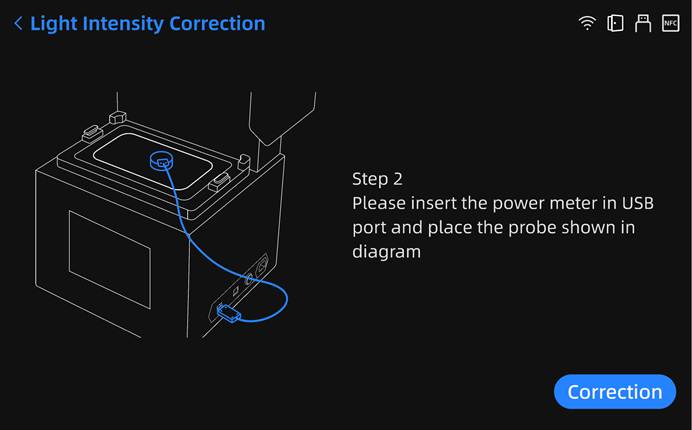
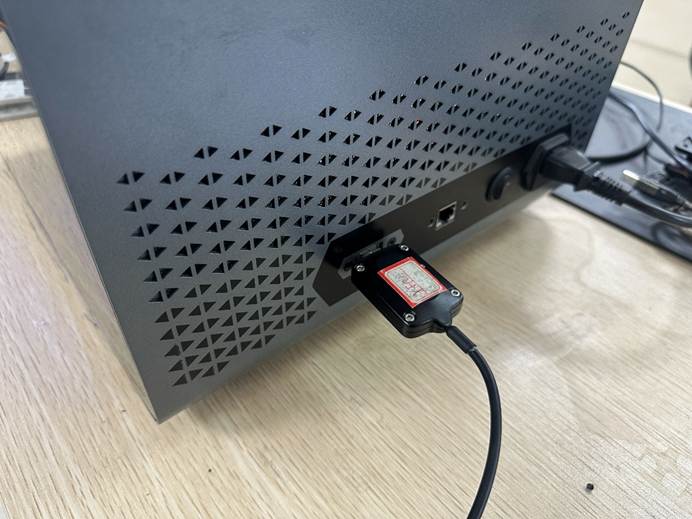
- Insert the optical power meter into the USB port on the side of the printer body (Correction can't start if it's not inserted)
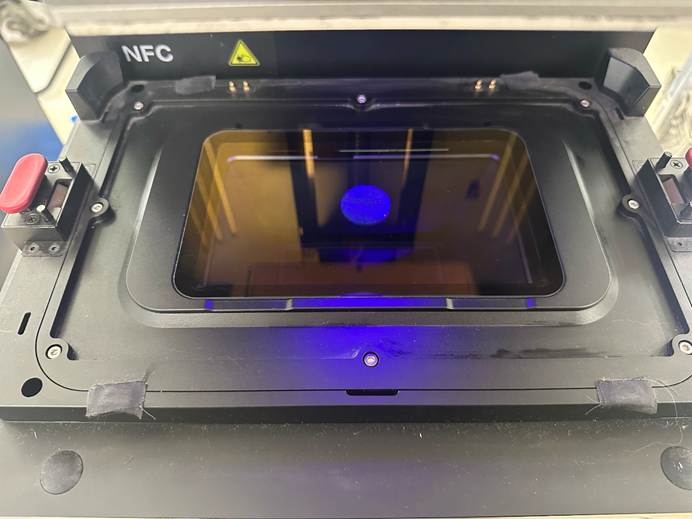
- Then, place the probe of the optical power meter aligned with the circular light spot illuminated in the center of the screen. Don't move it after placement.
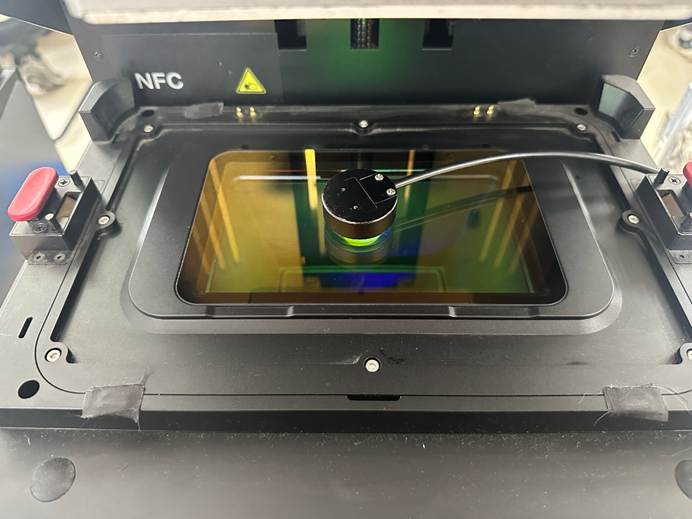
- Once ready, click the Start Correction button. The software will automatically perform Low / Medium / High power correction
- During correction, the software interface will sequentially perform Low / Medium / High power detection and display the results
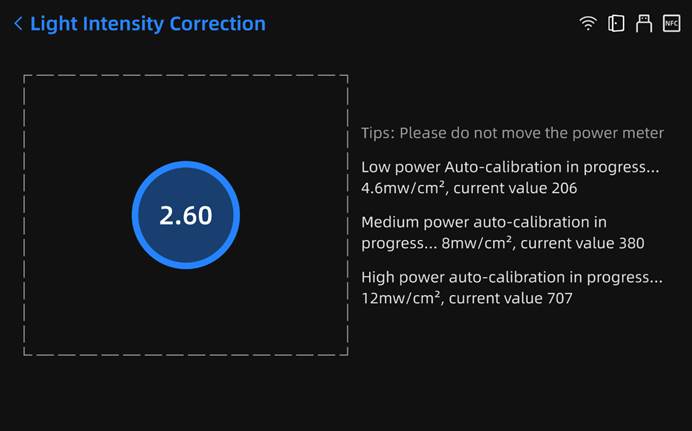
- After calibration is complete, the result page is displayed. Click OK on the result page to exit the light intensity calibration process.